Overview
SAFE Notifications help users stay informed about important system events, risk changes, and operational updates across the SAFE platform.
Notifications can be centrally configured by administrators or individually customized by users to ensure the right information reaches the right stakeholders at the right time.
SAFE supports real-time alerts for critical events and scheduled summaries for routine monitoring, enabling organizations to maintain operational awareness without overwhelming users with unnecessary alerts.
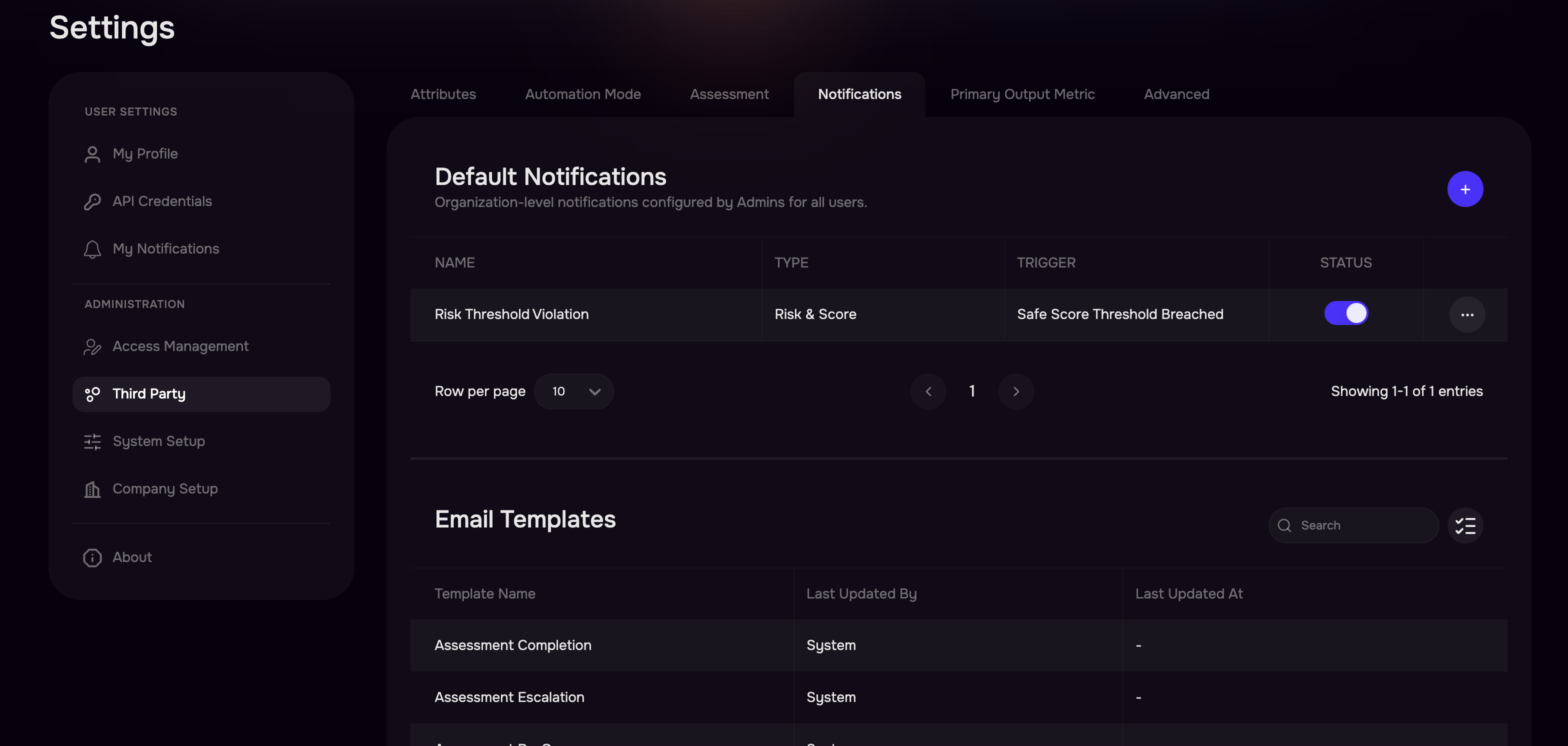
Notifications are available through Web (in-app) and Email delivery channels. Notifications can be configured from Settings > Third Party > Notifications Tab.
Note
Organizations that require notifications to be sent through their own mail infrastructure can configure Custom SMTP. When enabled, SAFE will route notification emails through the organization’s configured SMTP server instead of the default SAFE email service. For setup instructions and configuration details, please refer to the Custom SMTP Configuration documentation.
Types of Notifications
SAFE supports two notification models depending on who configures the rule.
1. Default Notifications (Admin Managed)
Default Notifications are created and maintained by SAFE administrators.
When an administrator configures a default notification:
It is automatically applied to all users with access to the relevant entity.
Users do not need to manually subscribe.
These notifications ensure organization-wide awareness of important events.
Example: An administrator configures a notification:
Trigger: Third-Party Risk Score Threshold Breached
Channel: Email + Web
Recipients: All users with access to the third party
All eligible users will receive alerts when the trigger occurs.
Notes
Default Notifications cannot be disabled by individual users.
If a notification appears excessive or incorrectly configured, users should contact their SAFE administrator.
Out-of-the-Box Default Notifications
SAFE now provides a set of Out-of-the-Box (OOTB) notification. These default notifications help ensure users are informed of important submission and review events without requiring any manual configuration.
The following notification rules are enabled by default:
Questionnaire Submitted: Triggered when a questionnaire status changes to Submitted.
Attestation Submitted: Triggered when an attestation status changes to Submitted.
Issue Ready for Review: Triggered when an issue status changes to Ready for Review.

2. My Notifications (User Managed)
My Notifications allows individual users to subscribe to events relevant to their role or workflow. Navigate to Settings > My Notifications to configure.
Users can:
Create custom notification rules
Modify triggers and filters
Select preferred delivery channels
Define notification frequency
This provides personalized monitoring without affecting other users.
Example: A TPRM analyst creates a notification:
Trigger: Third Party Added
Filter: Tier = 1
Channel: Web
Delivery: Real-Time
The analyst receives alerts whenever a Tier 1 third party is added.
Notification Configuration Components
Every notification rule in SAFE consists of four core components.
Entity
The entity defines what object in SAFE is being monitored
Currently supported entities: Third Party
Trigger
A trigger represents the event that activates the notification. Each entity type has a set of available triggers.
Example Triggers for Third Party
New Third Party Added
Third Party Status changed
Third Party SAFE Score Threshold Breached
Questionnaire Status Changed, and more.
Triggers are designed to capture significant lifecycle events or changes in risk.
Filters
Filters refine notification rules to ensure users receive alerts only for relevant entities.
Filters can be applied based on attributes such as:
Third Party Tier
Group
Risk level
Ownership, and more
Example
Notify only when: Tier = Tier 1
This ensures notifications are triggered only for high-priority vendors.
Channel
Channels determine how notifications are delivered.
Currently supported channels:
Web (In-App Notification Bell)
Email
Users may choose one or both channels depending on their preferences.
Delivery Preferences
Users can configure how frequently notifications are delivered.
Available options depend on the selected trigger.
Real-Time Delivery
Notifications are delivered immediately after the trigger event occurs.
SAFE includes a short aggregation window to prevent alert fatigue. Events occurring within 10–15 minutes are grouped into a single notification.
This is ideal for:
Critical risk changes
Security alerts
Operational updates requiring immediate awareness
Scheduled Notifications
Notifications are batched and delivered at a specific time.
Users select a preferred delivery time, such as Daily at 09:00 AM.
This is best suited for:
Routine monitoring
Daily operational summaries
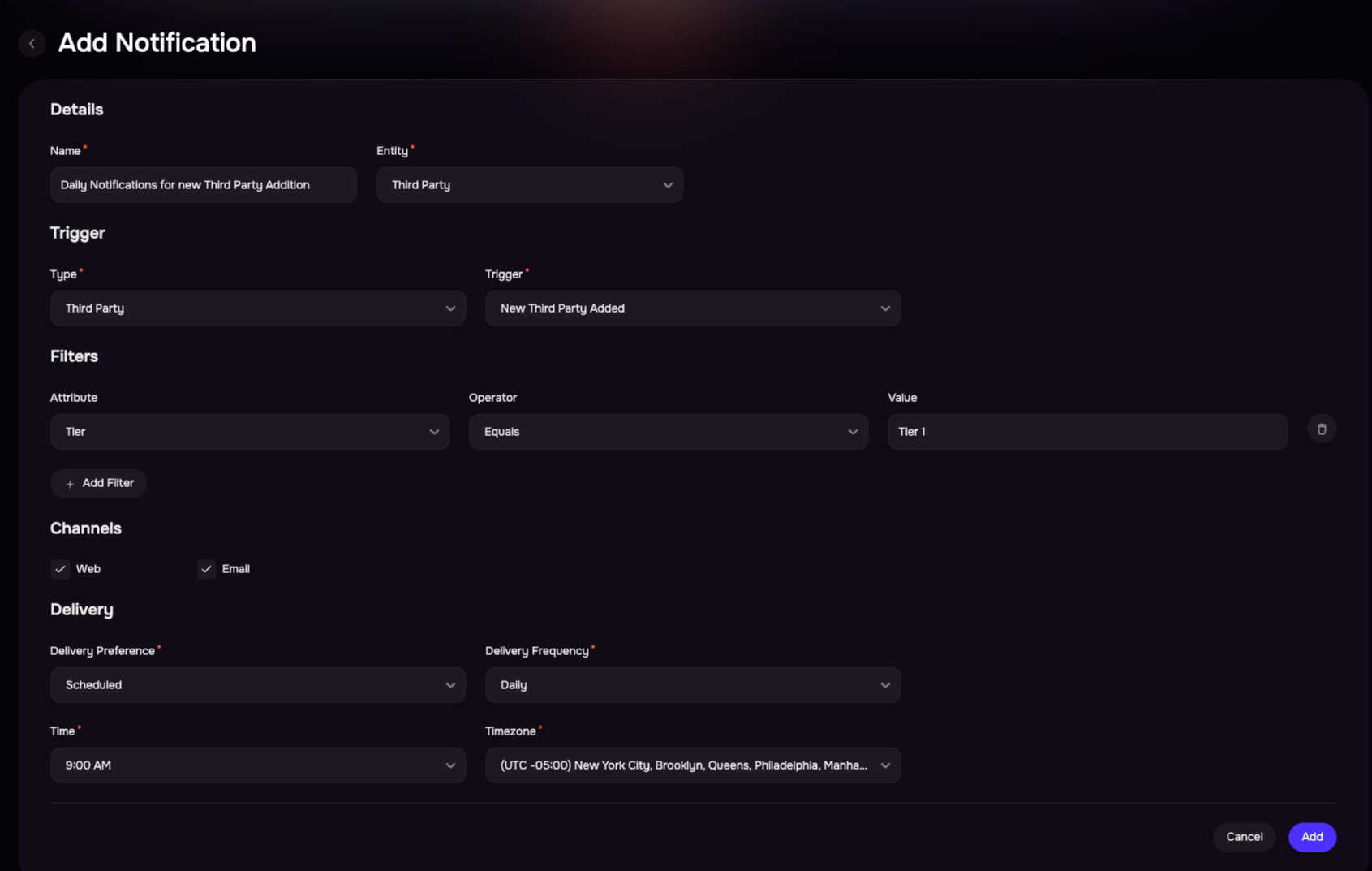
Configuring Notifications
Users can configure notifications from the Notifications Settings > Default Notifications page.
Navigate to Notifications Settings.
Select the + button.
Enter a name for the Notification.
Select Entity as Third Party.
Select the Trigger from the drop-down.
Apply Filters.
Select the Delivery Channel as Web, Email, or Both.
Choose Real-Time or Scheduled Delivery.
Save the Notification rule. Once saved, the notification becomes active immediately.
Managing Notifications
Users can manage their notifications directly from the Default Notifications or My Notifications list.
Available actions include:
Edit Notification: Allows you to modify the Trigger, Filters, Channel, and Delivery preferences.
Enable / Disable: Temporarily disable a notification without deleting it.
Delete Notification: Permanently removes the notification rule.

FAQs
Can I disable a Default Notification set by an admin?
No. Default Notifications are managed by administrators and apply to all users with access to the relevant entity. Contact your admin if you believe a default notification is misconfigured.
What happens if both a Default Notification and My Notification cover the same event?
You may receive notifications from both configurations. Review your My Notifications to avoid duplicates.
How do I confirm a notification was delivered?
Check your in-app notification bell (for Web channel) or your registered email inbox (for Email channel).