Creating an Issue
You can create Action Plans from multiple points within the SAFE platform:
From Action Plan Page
From Questionnaire Responses
From Outside-In Findings
Create an Issue form Action Plan Page
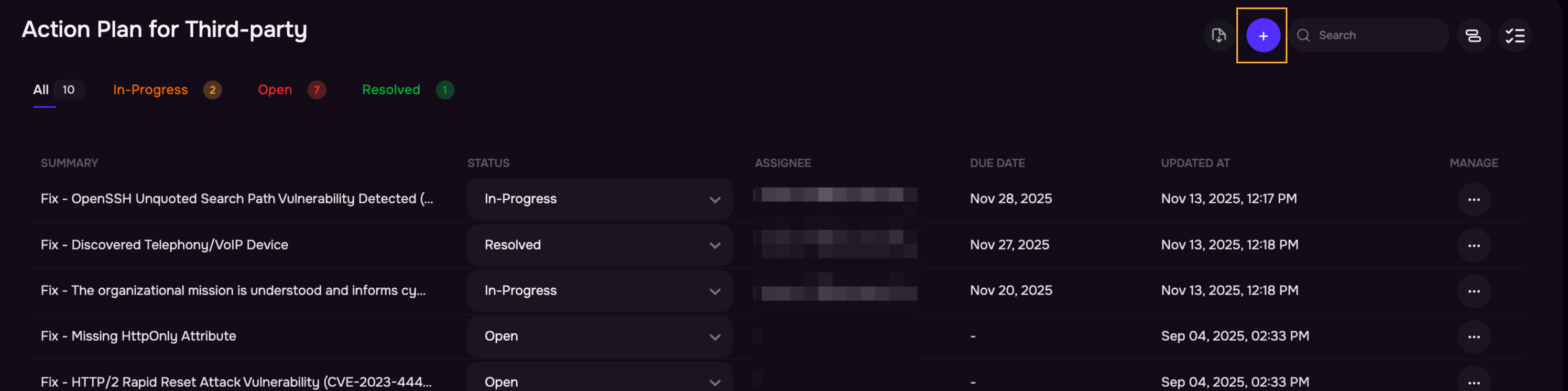
Click the Action Plan card for the selected third party.
Click the + icon to create a new issue.
Choose the appropriate Issue Type: Questionnaire, Outside-In, or Other.
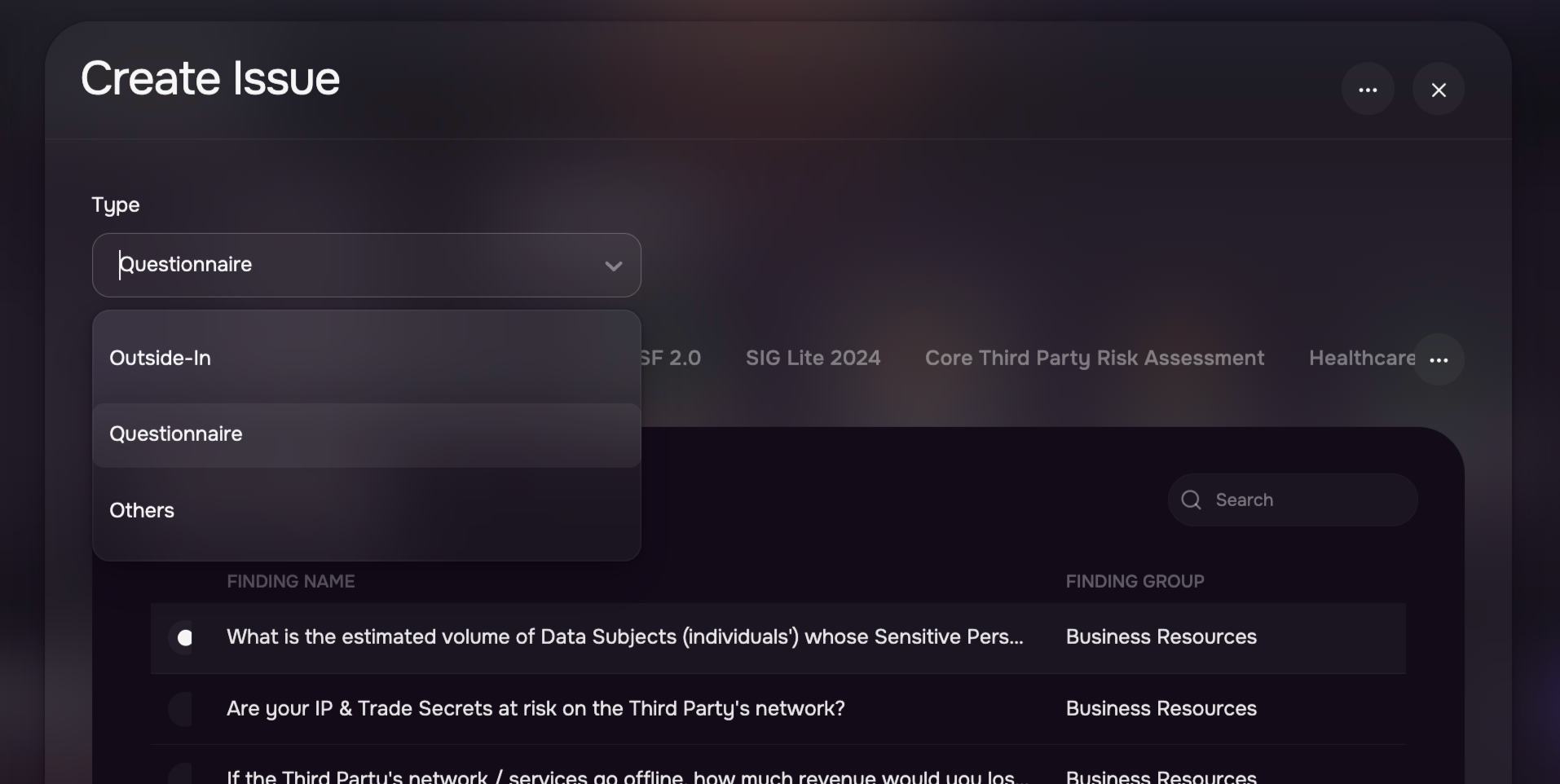
If you select Questionnaire or Outside-In:
Select a finding from the list.
The Title and Description fields will be auto-populated based on the selected finding.
Modify these fields if needed to match your requirements.
If you select Other:
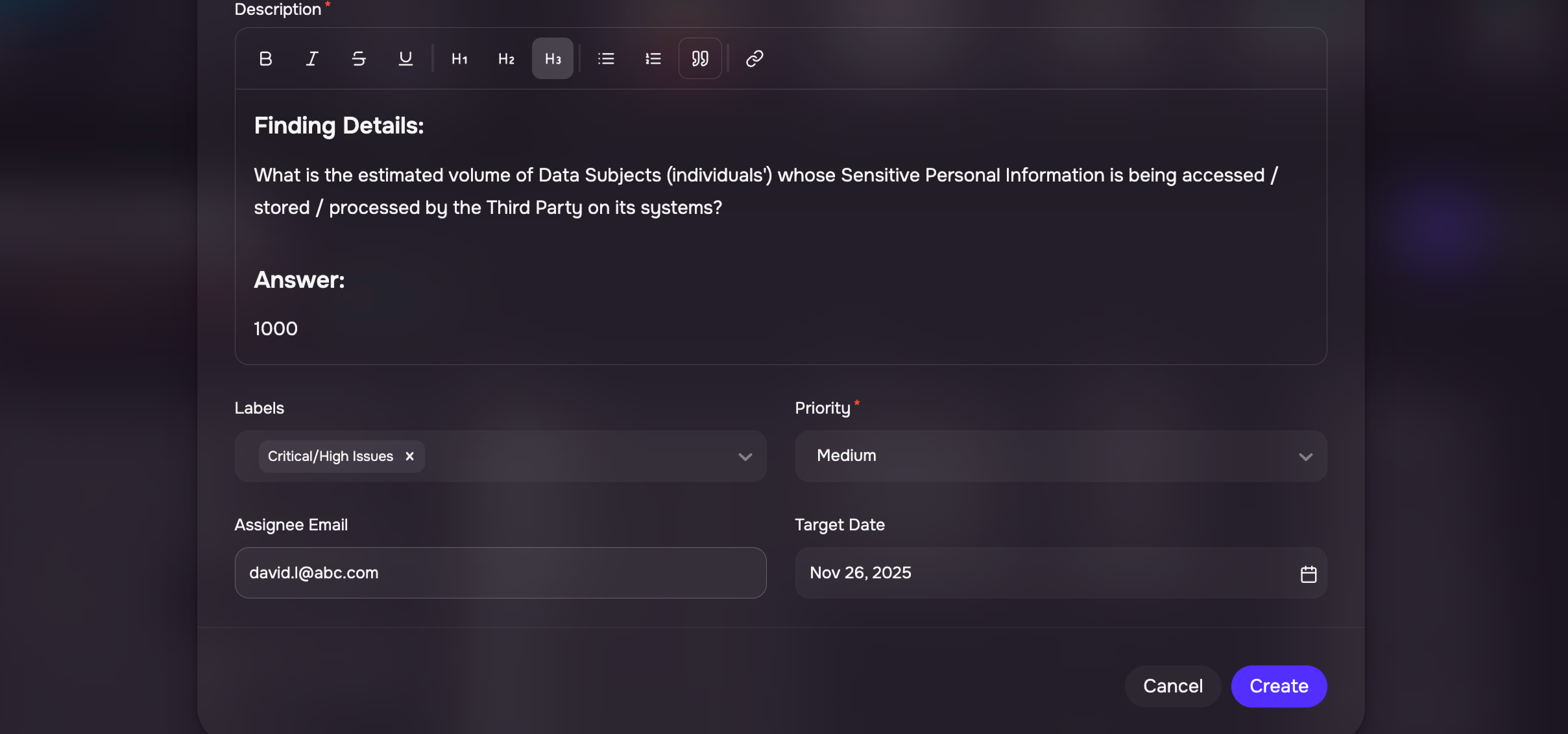
Manually enter the Title and Description for the issue.
Select the Priority, Assignee, Labels, and Due Date.
Click Create. The issue will be added to the Issues List.
Create an Issue form Questionnaire Assessment Page
Navigate to the Questionnaire Assessment page.
When reviewing responses, click the Flag as Issue icon for any non-compliant or concerning answer.
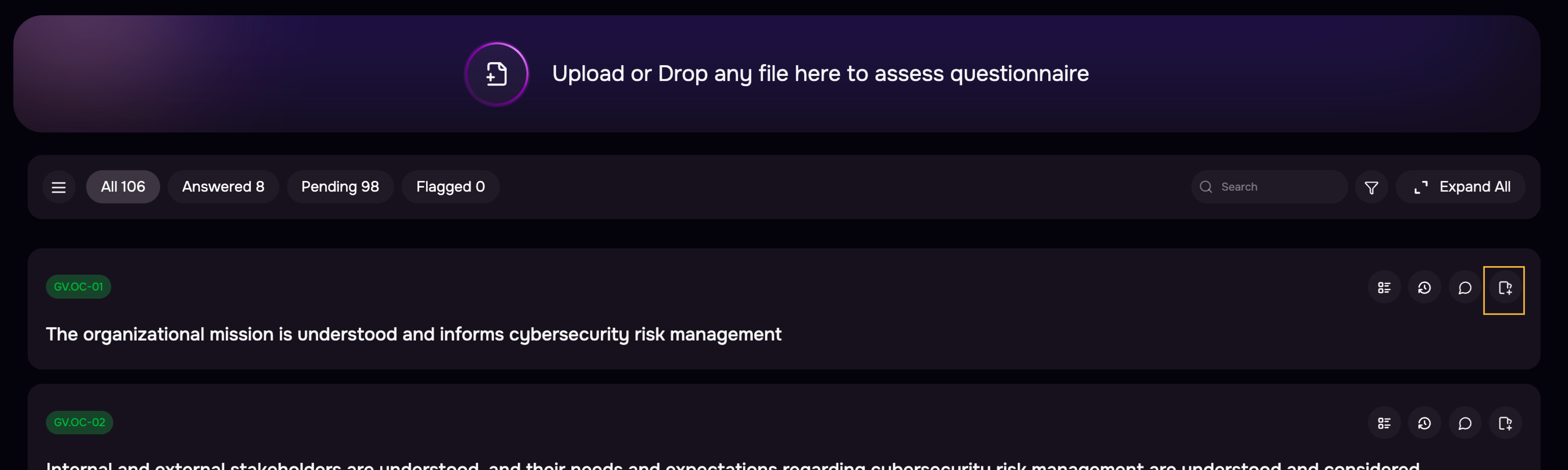
The system will automatically create an issue with the relevant details pre-filled.
Enter the Assignee and Due Date, and update any other fields as needed.
The issue will be added to the Issues List under the Action Plan.
Create an Issue form Findings Page
Navigate to the Outside-In Findings page.
Click the three-dot options menu for a finding and click Create Issue.
.png)
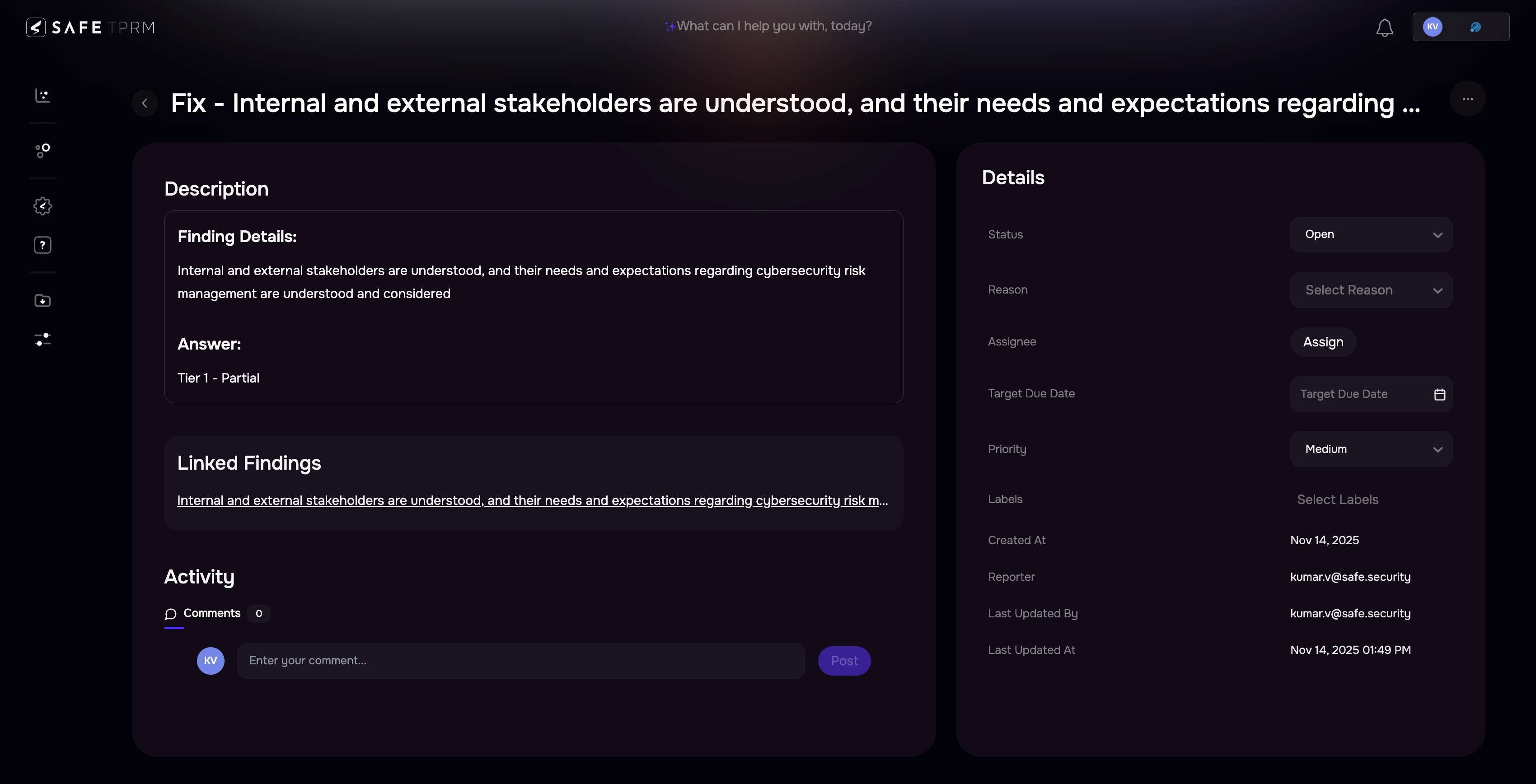
The system will automatically create an issue with the relevant details pre-filled.
Enter the Assignee and Due Date, and update any other fields as needed.
The issue will be added to the Issues List under the Action Plan.