Overview
The Questionnaire Experience in SAFE provides a smooth and intuitive workflow for completing assessments. It helps you navigate, answer, and manage questionnaires quickly and efficiently.
Assessment Summary Panel: View total questions, answered vs. pending, completion percentage, overview, and last interaction in one place.
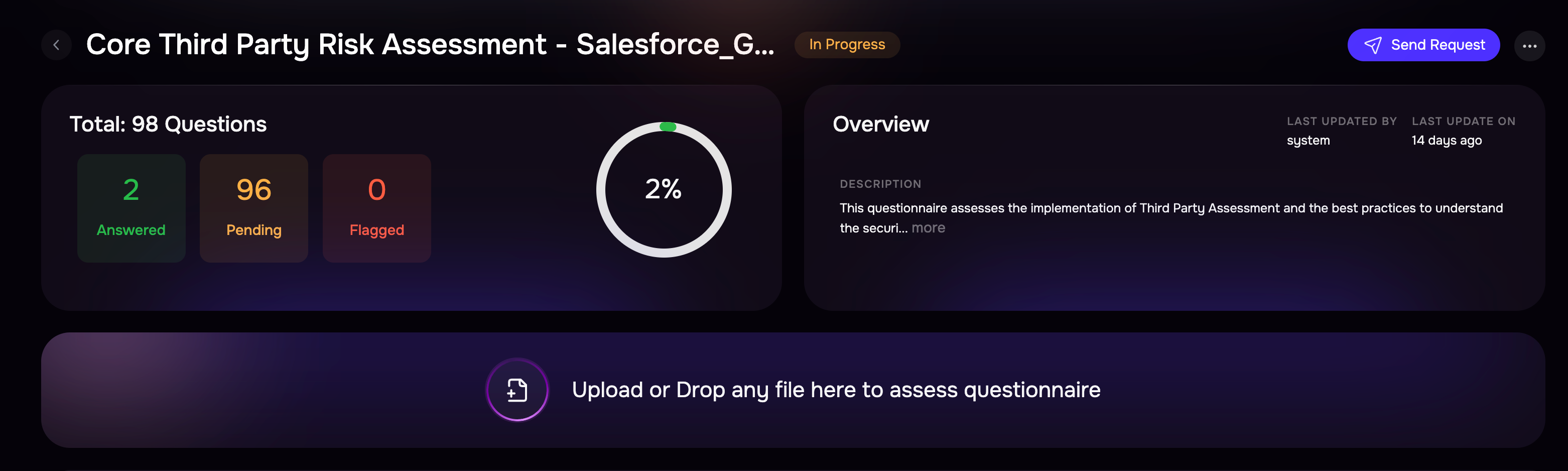
Enhanced Questionnaire Interface: Quickly switch between reading and answering using the 'Expand/Collapse All' feature and a new single-select view that reduces the number of clicks.
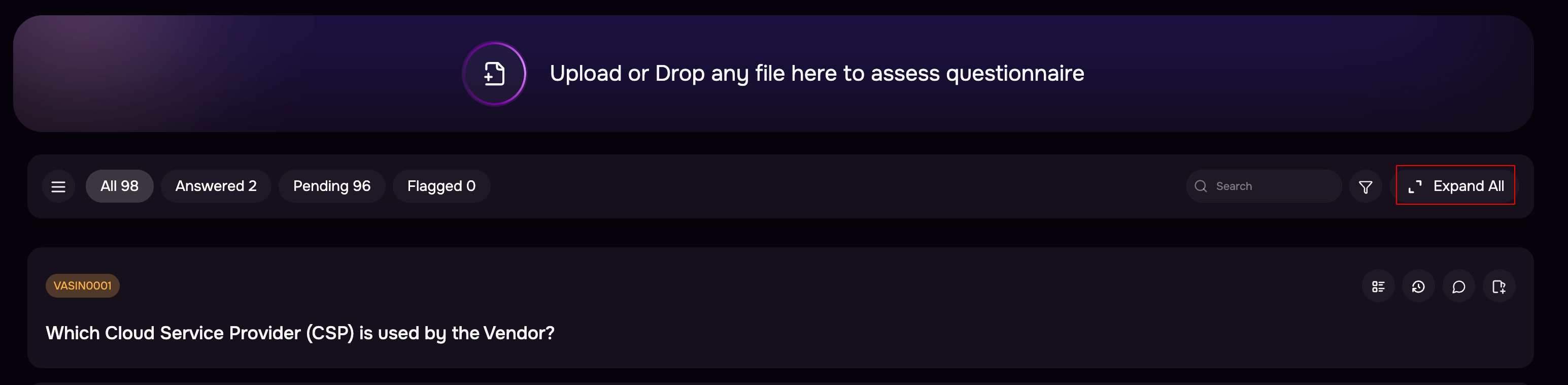
Question Grouping: Navigate faster with automatically grouped questions and a dedicated grouping icon for quick access.
Assessment Upload: Upload a completed questionnaire file and let SAFE instantly auto-assess responses.
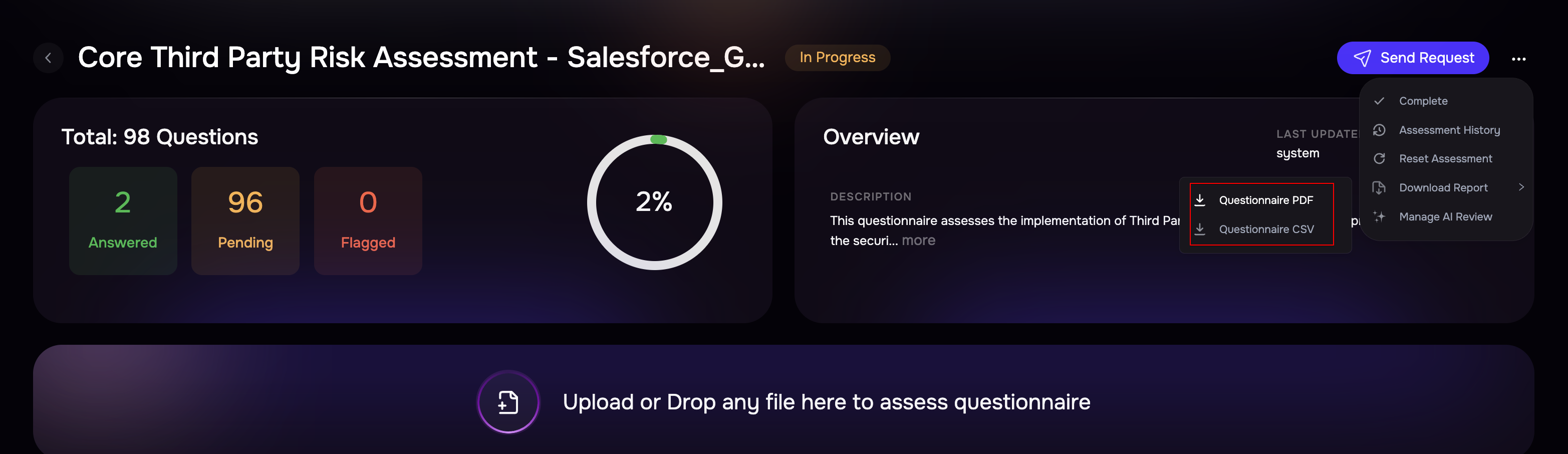
Download Options: Export questionnaire assessments as PDF or CSV directly from the three-dot options menu.
Question Details Drawer: Click the details icon to view the question ID, last updated by, timestamps, and metadata.
Keyboard-Based Answering: Use the Tab key to move quickly between answers for faster completion.
One-Click Reset: Reset the entire assessment using the three-dot menu for a fresh start.
Search & Filters: Quickly locate specific questions using keyword search and filters.
Quick Filters: Quick filters are available for quickly navigating to Answered and Pending questions.
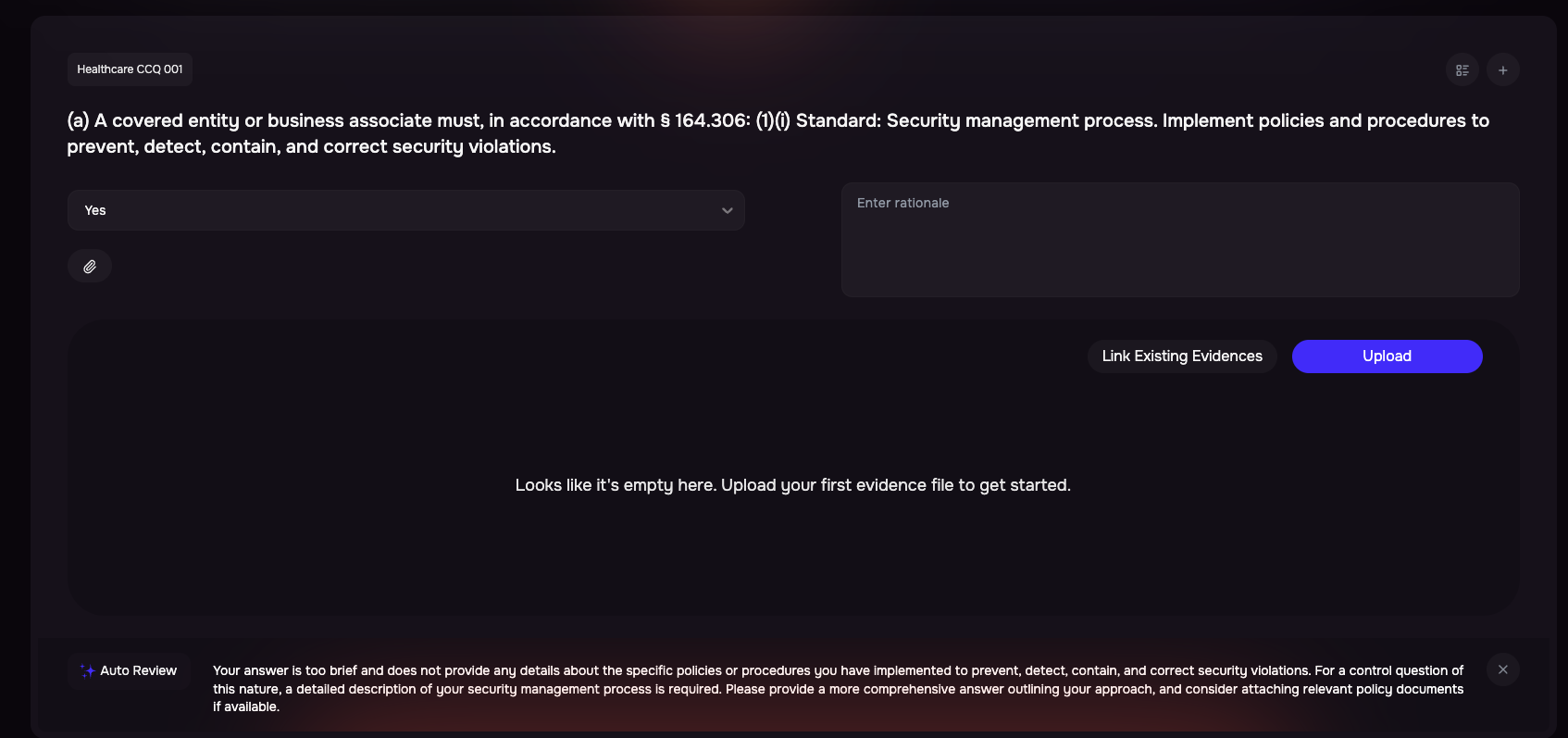
Add Rationales: You can now add rationale notes while answering questions to provide context and justification for your responses.
Create Issue: Create an issue for a question in a single click.
Assessing a Questionnaire
Click on a Questionnaire from the list.
You will be taken to the Questionnaire Assessment page. Here you can view the Assessment Summary, which includes:
Total number of questions
Number of answered and pending questions
Percentage completion
Overview
Last interaction with the questionnaire
Uploading an Assessment:
You can upload a completed questionnaire file.
Based on the uploaded file, SAFE will automatically assess the questionnaire.

Answering Questions Manually:
Scroll down to the questionnaire list.
Read each question, select the answer, and (optionally) add a rationale.
Attach supporting evidence if needed.
Question Grouping:
The system groups questions based on their nature.
Click the three-line (group) icon to view the grouping.
Groups allow you to quickly navigate between related sets of questions.