Overview
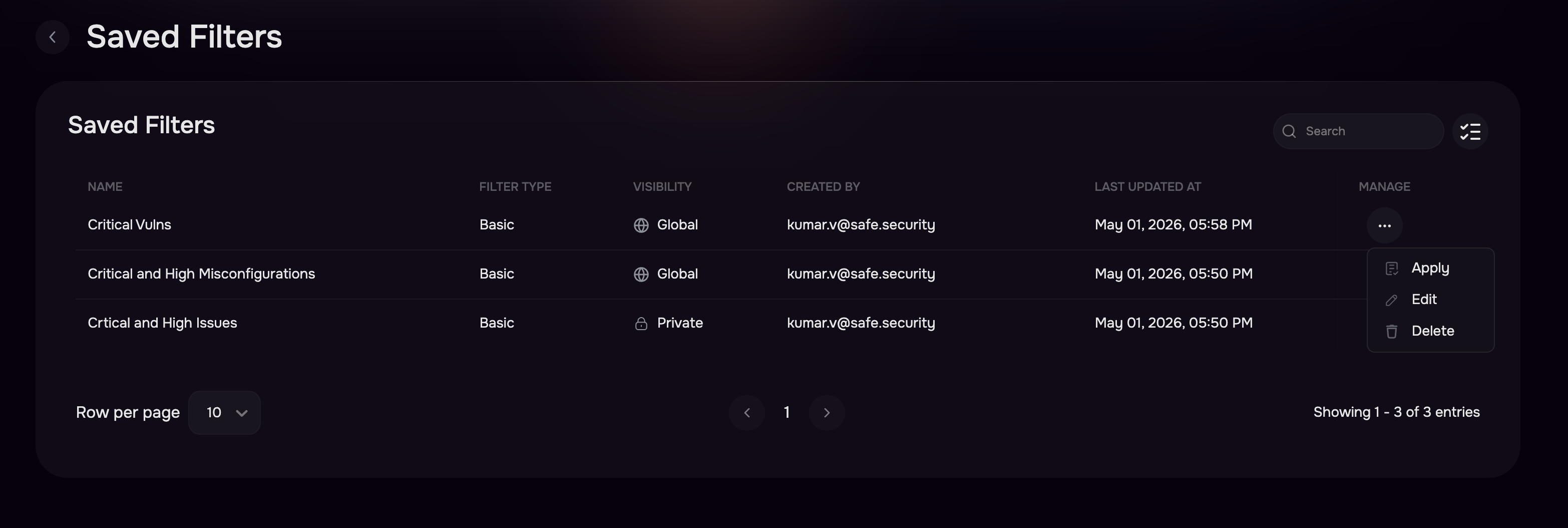
Saved Filters (Views) in SAFE enable users to store and reuse commonly applied filter configurations, reducing repetitive effort and improving consistency in analysis across modules such as Findings and Assets. When creating a Saved Filter, the system captures not only the applied Basic or SAQL filters but also the selected columns and sort order, preserving the complete data view.
Users can quickly reapply these configurations with a single selection, which automatically restores the saved setup in the filter panel and table view. Each Saved Filter can be configured with visibility controls, allowing it to remain private to the creator or be shared globally across the tenant to support team-wide standardization.
Additionally, users can manage their Saved Filters by renaming, deleting, or updating visibility settings as needed.
Add a View
To save a filter:
Navigate to the relevant data table in SAFE where you want to save a filter.
Apply the required filters to display the desired list of records.
Click the Saved Views dropdown.
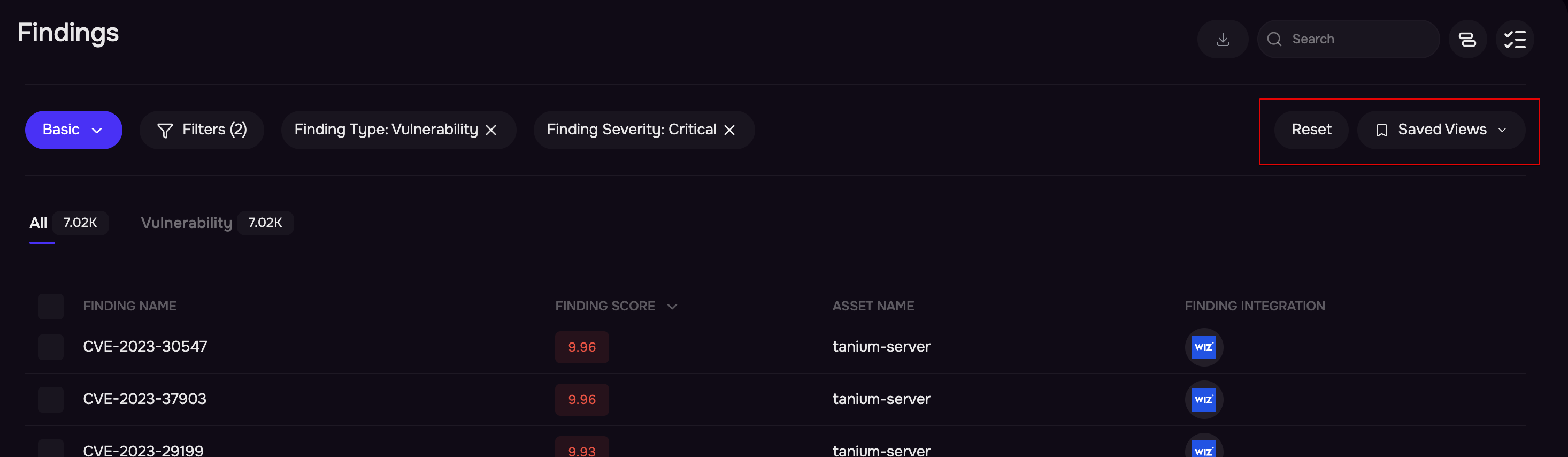
Select the Create View option.
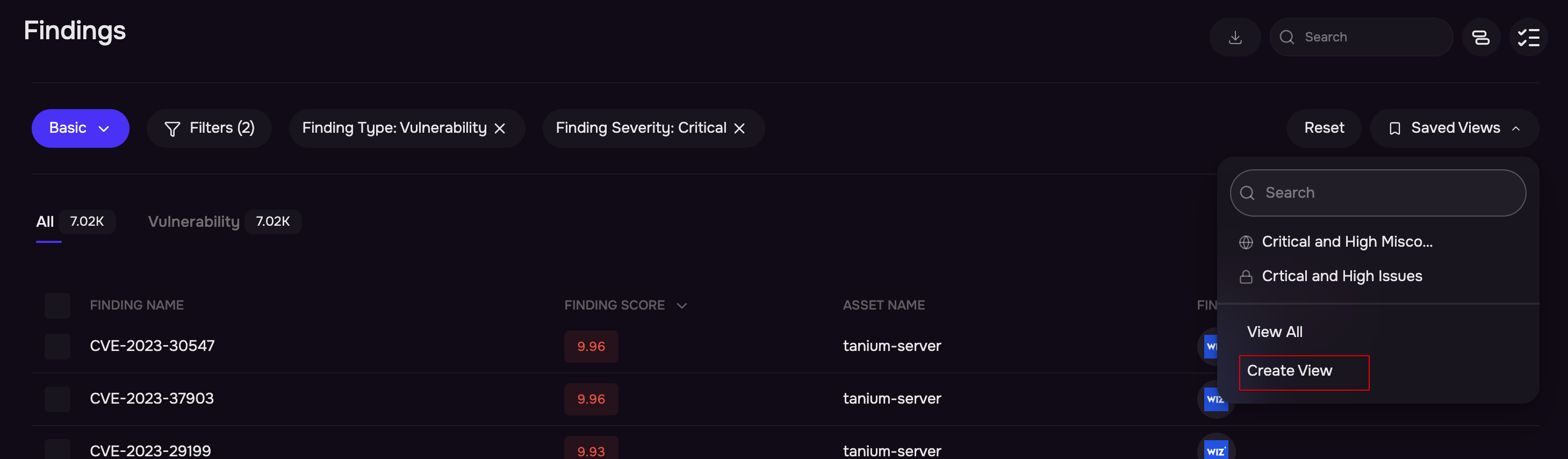
Enter a unique name for the view.
Select the visibility of the view:
Private: Visible only to you.
Global: Visible to all users in the tenant.
Click Save.
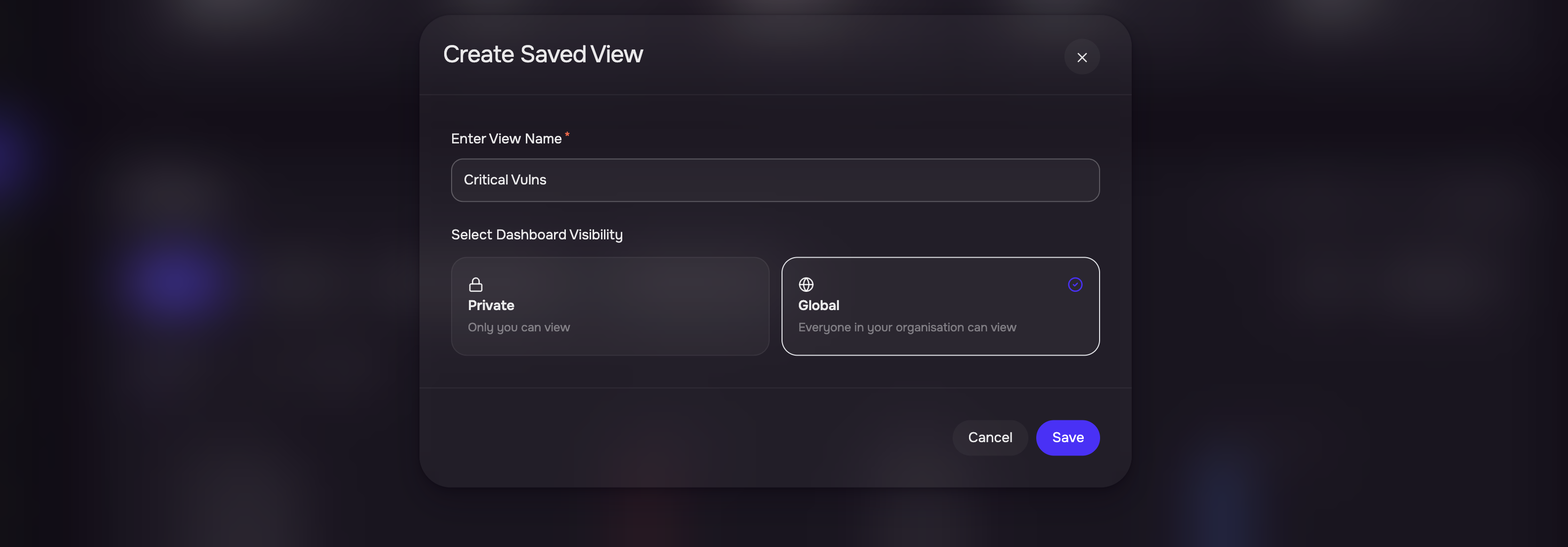
The view is created and becomes available in the Saved Filters dropdown for future use.
Steps to View All Saved Views
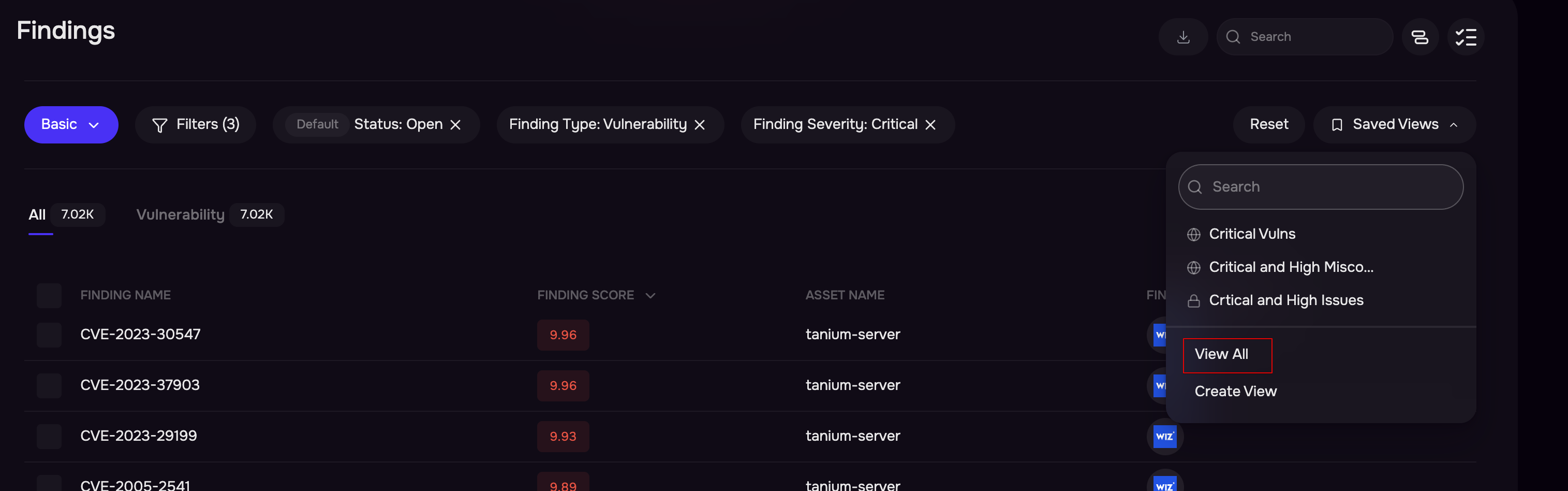
Click the Saved Views dropdown.
Select the View All option.
The list of saved views is displayed.
Review details such as the view creator and the last updated date.
Use the available actions to edit or delete a view.