Overview
SAFE CTEM now provides Exception Management, a formal mechanism to document, track, and optionally exclude findings from risk and exposure scoring.
Highlights
Create exceptions: Formally document why specific findings are being accepted or marked as false positives, with mandatory justification (rationale).
Control score impact: Optionally exclude excepted findings from SAFE risk scores and/or exposure scores, or keep them included for audit-only tracking.
Track lifecycle: Exceptions have a full lifecycle (Active, Inactive, Expired) with audit history showing every change, who made it, and when.
Set expiry dates: Exceptions can be time-bound, automatically expiring when the review date passes.
Attach evidence: Upload supporting documents (policies, approval emails, compensating control evidence) directly to an exception.

Info
Security and GRC teams get a formal, auditable risk acceptance workflow. Exceptions provide the governance trail needed for compliance audits while giving teams granular control over which findings affect organizational risk and exposure scores.
Exception Types & Reasons
Every exception must be classified by type and reason. The available reasons depend on the selected type.
Risk Accepted
Use this type when the finding represents a real risk, but the organization has decided to accept it.
Reason | When to Use |
|---|---|
Won't Fix | A deliberate decision not to remediate. |
Patch Unavailable | No vendor patch exists for the vulnerability. |
Downtime Not Permitted | Remediation requires downtime that cannot be scheduled. |
Application Incompatibility | The fix breaks a critical application dependency. |
Compensatory Control Applied | An alternative control mitigates the risk sufficiently. |
Technical Debt / EOL | The affected system is end-of-life or scheduled for decommission. |
Not Externally Exposed | The finding exists on an internal-only system with no external attack surface. |
Business Exception | A business decision overrides the security recommendation. |
Vendor Dependency | Remediation depends on a third-party vendor action. |
Others | None of the above categories apply; describe in rationale. |

False Positive
Use this type when the finding does not represent a real risk in your environment.
Reason | When to Use |
|---|---|
Detection Error | The scanner incorrectly identified the vulnerability (tool error). |
Not Applicable | The finding is technically valid but does not apply to this environment or configuration. |
Others | None of the above categories apply; describe in rationale. |
Exception Lifecycle
Every exception moves through a defined set of statuses:
Status Definitions
Status | Description | User Can Edit? |
|---|---|---|
Processing | The exception is being set up and findings are being linked. Brief transitional state (typically a few minutes). | No — wait for it to settle. |
Active | The exception is live. Linked findings are affected by the configured score exclusion settings. | Yes — can update, deactivate, delete, or unlink findings. |
Inactive | The exception is paused. Linked findings are no longer excluded from scores but the exception record is preserved. | Yes — can reactivate, update, or delete. |
Expired | The exception's expiry date has passed. Findings are no longer excluded. | No — terminal state. Cannot be reactivated or modified. |
Key Behaviour
Processing is automatic. After creating an exception or changing its status/score settings, it briefly enters Processing while the system links findings and updates scores. No user action is needed.
Terminal states are permanent. Expired and Failed exceptions cannot be edited, reactivated, or deleted. They remain in the system for audit purposes.
Failed exceptions display an error message explaining what went wrong. The recommended action is to create a new exception.
Creating an Exception
Exceptions can be created by selecting findings in one of two ways:
Option A: By Filter Criteria (Dynamic Rule)
Provide a set of filter conditions (e.g., "all Critical findings on Asset Group X"). The system identifies and links all matching findings at creation time.
Best for: Large-scale exceptions covering many findings that share common attributes.
Option B: By Specific Finding IDs
Provide an explicit list of finding identifiers. Only those specific findings are linked.
Best for: Targeted exceptions on a known set of findings.

Required Fields
Field | Description | Constraints |
|---|---|---|
Name | A descriptive title for the exception. | 1–200 characters. |
Type |
| Must be one of the two allowed values. |
Reason | The reason code (must be valid for the selected type). | See Section 2 for allowed values. |
Rationale | A free-text justification explaining why this exception is being created. | 1–2,000 characters. Required. |
Expiry Date | When the exception should automatically expire. Must be a future date. | No expiry (permanent until manually changed). |
Optional Fields
Field | Description | Default |
|---|---|---|
Risk Calculation | Whether to exclude linked findings from risk scores. Setting this to |
|
Exposure Calculation | Whether to exclude linked findings from Asset Score, Asset Group Score. Setting this to |
|

What Happens After Creation
The exception is created with status Processing.
The system links the specified findings (this typically takes a few minutes).
Once complete, the status transitions to Active.
If the exception was configured with score exclusion, the affected findings are now excluded from the relevant score calculations.
Safe Retries (Idempotency)
If you submit the same create request within a 60-second window using the same Idempotency-Key header, the system returns the original response without creating a duplicate. This protects against network retries or accidental double-submissions.
Score Exclusion (Risk & Exposure Calculation)
Each exception independently controls two scoring dimensions:
Setting | Value | Effect |
|---|---|---|
Risk Calculation |
| Findings remain in SAFE risk score calculations (default). |
| Findings are removed from SAFE risk score calculations. | |
Exposure Calculation |
| Findings remain in exposure score calculations (default). |
| Findings are removed from exposure score calculations. |
Managing Exceptions
Updating an Exception
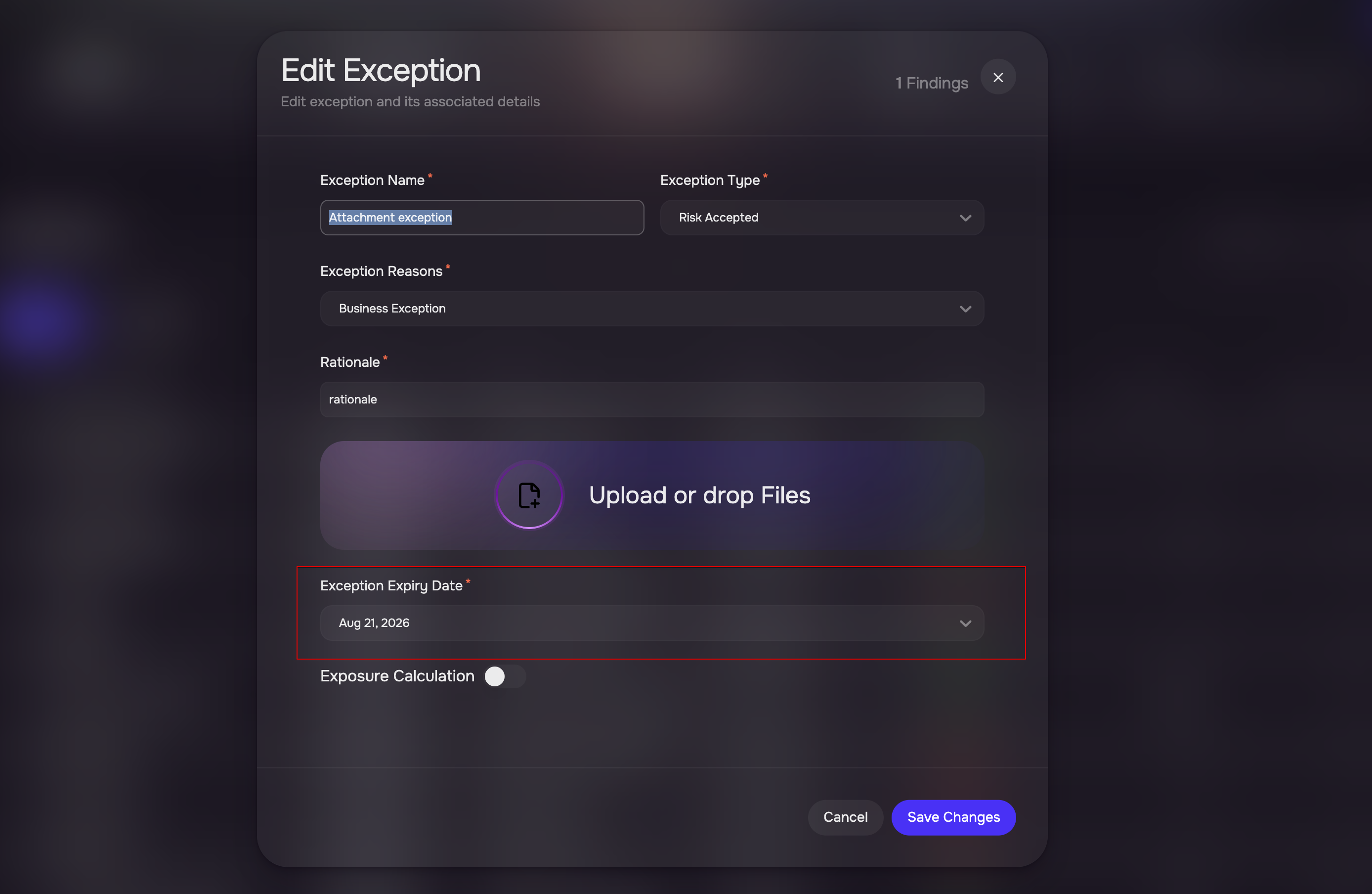
The following fields can be modified on an Active or Inactive exception:

Field | Notes |
|---|---|
Name | Updated immediately. |
Type | Changing type may require updating the reason to one valid for the new type. |
Reason | Must be valid for the current type. |
Rationale | Updated immediately. |
Expiry Date | Can be extended or removed. Must be a future date if provided. |
Status | Can toggle between |
Risk Calculation | Triggers reprocessing when changed. Setting |
Exposure Calculation | Triggers reprocessing when changed. Setting |
Deactivating / Reactivating an Exception
Click the three-dot options menu available in the Manage column and then click the Updated Status opotion.
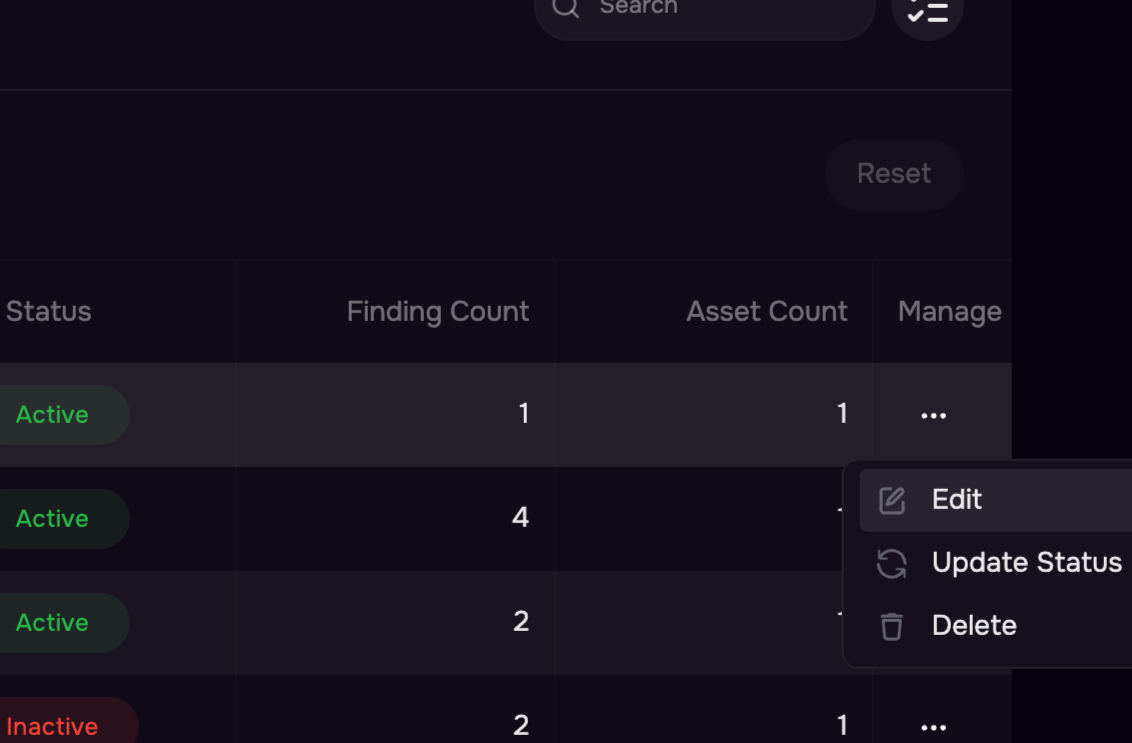
Deactivate (Active > Inactive): Score exclusion is removed. Findings remain linked but are no longer excluded from scoring. The exception record is preserved.
Reactivate (Inactive > Active): Score exclusion is re-applied based on the current calculation settings. Brief reprocessing occurs.

Deleting an Exception
Permanently removes the exception and unlinks all associated findings.
Score exclusion is removed immediately.
The exception's audit history is also deleted.
Cannot delete while Processing — wait for processing to complete first.
Remove Findings
You can reduce an exception's scope by unlinking findings without deleting the entire exception.
Workflow | Path |
|---|---|
From the Exception | Exception Details → Finding list → select finding(s) → Remove from Exception. |
From the Finding | Findings list (with |
Navigate to an Excecption details page from the Projects > Exception > Click an Exception.
Click the Findings Tab.
Selected the Findings to be removed.
Click the three-dot options menu and select the Remove from Exception option.

Mode | Description |
|---|---|
By Finding IDs | Provide a list of specific finding IDs to unlink. |
Unlink All | Remove all linked findings (with optional exclusion list to keep specific findings linked). |
After unlinking:
The exception's finding and asset counts are reduced.
Score exclusion is recalculated for the unlinked findings.
The exception briefly enters Processing while counts are updated.
Exception Expiry
If an expiry date is set, the system automatically transitions the exception to Expired status when that date passes.
On expiry, score exclusion is removed — affected findings return to normal scoring.
Expired is a terminal state. The exception cannot be reactivated, edited, or deleted after expiry.
The expiry date can be extended or removed at any time before the exception actually expires.
Expiry checks run periodically (daily). There may be a brief delay between the expiry date and the actual status transition.
Excepted Findings in Findings List
Default Behaviour: Excepted Findings Are Hidden
By default, findings that have an active exception are hidden from the findings list. This prevents excepted findings from cluttering the active remediation queue.
Revealing Excepted Findings
To view excepted findings, add any exception-related filter attribute to your findings query:
Filter Attribute | Description |
|---|---|
| Filter by |
| Filter by |
| Filter by exception status. |
| Filter by reason code. |
| Filter by expiry date range. |
When any of these filters are present, the default hiding is disabled and excepted findings are included in results.
Audit History & Attachments
Audit History
Every exception maintains a full audit trail. Each history entry records:
Who performed the action (user name, email, role)
What action was taken
When it occurred
What changed (specific field values before/after for updates)
Tracked Actions
Action | Triggered When |
|---|---|
Create | Exception is first created. |
Update | Any field is modified. |
Status Change | Exception status transitions (activate, deactivate, reprocess). |
Unlink Findings | Findings are removed from the exception's scope. |
Expired | Exception automatically expires. |
Deleted | Exception is permanently removed. |
Attachment Uploaded | A supporting document is attached. |
Attachment Deleted | An attachment is removed. |
Attachments
Supporting documents can be uploaded to an exception to provide evidence for the exception decision:
Policy documents, approval emails, compensating control evidence, risk assessment reports, etc.
Attachments are stored securely and linked to the exception record.
Upload and deletion of attachments are tracked in the audit history.
Limitations
Constraint | Limit |
|---|---|
Maximum finding IDs per create request (using rule) | 100,000 findings |
Modification cooldown | 60 seconds between update, delete, or unlink operations on the same exception. |
Processing lock | No modifications allowed while an exception is in Processing state. Wait for it to settle. |
Terminal states | Expired and Failed exceptions cannot be modified, reactivated, or deleted. |
Processing time | Typically a few minutes after creation or status/score changes for linking and score updates to complete. |
Default findings list behaviour | Findings with active exceptions are hidden by default. Use exception filters to reveal them. |
Re-linking after unlink | If a finding reappears from the source after being unlinked, it will not automatically re-link to the original exception. |
Score exclusion scope | Exclusion only applies while the exception is in Active status. |
Score exclusion entitlement | Risk exclusion requires the CRQ capability; exposure exclusion requires the CTEM capability. Requests for an exclusion the tenant is not entitled to are rejected (see Section 5). |
Name length | Maximum 200 characters. |
Rationale length | Maximum 2,000 characters. |
Expiry date | Must be a future date when provided. Cannot be set to a past date. |
Filter criteria vs Finding IDs | Exactly one mode must be used at creation — cannot combine both or omit both. |
Duplicate finding IDs | Automatically deduplicated; duplicates are ignored silently. |
Idempotency window | Create and unlink requests support safe retries within a 60-second window using the |
API Documentation
Finding Exception APIs are available at the public API documentation: Swagger
The route path starts with /api/v4/findings/exceptions