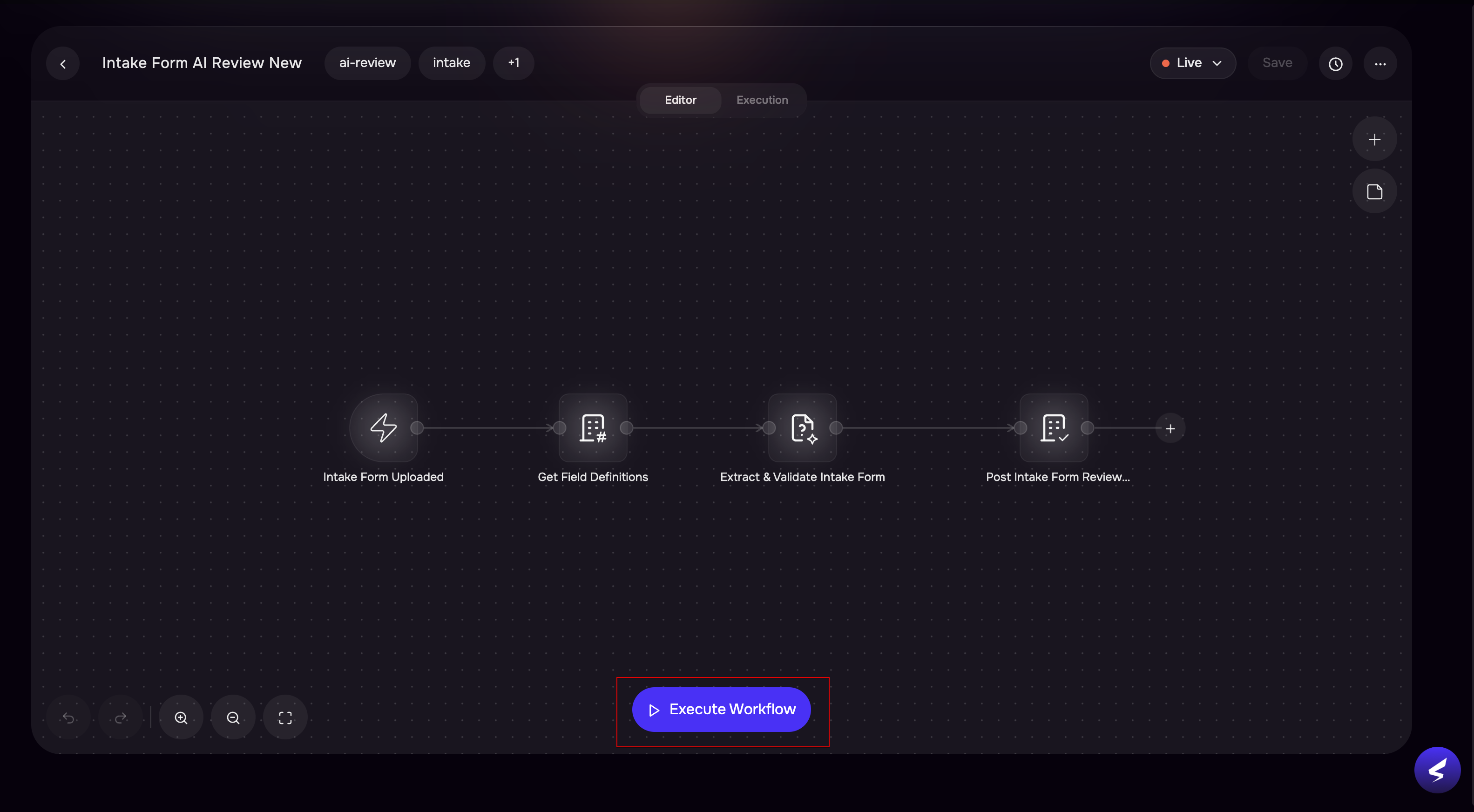
Creating a Workflow from a Template
Navigate to Workflows.
Click the + button to create a workflow.
Select Start with Template option.
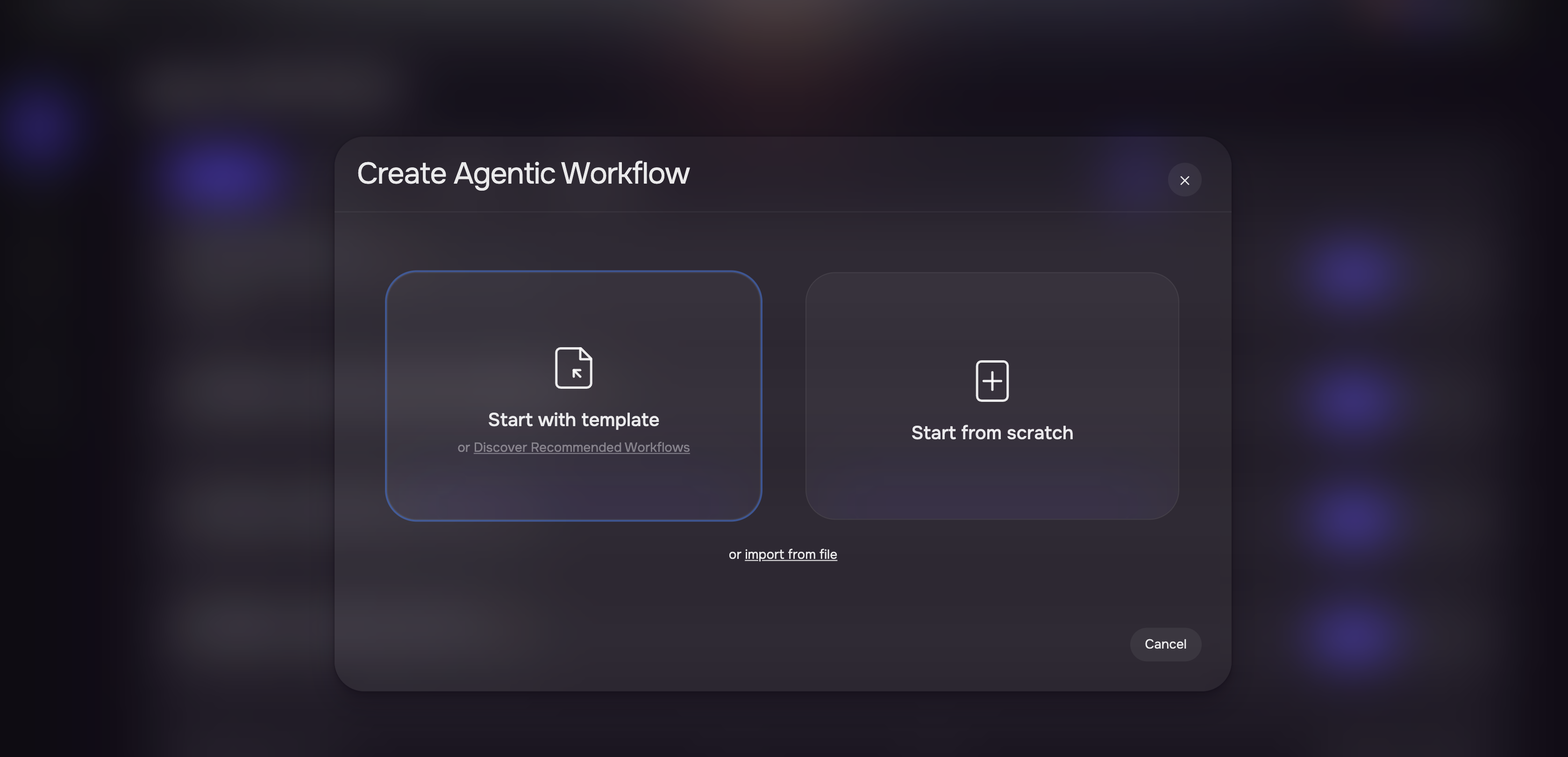
Browse and select a template.
Enter the name and description for the Workflow.
Click Continue to create a Wirkflow.
.png)
Enter a unique name for the new workflow.
Click Create.
The system creates a new workflow pre-populated with the template’s nodes and configuration. You can modify any node’s configuration before publishing.
Example: Create Tier-Based Third Party Onboarding
This template demonstrates how a single workflow can automate an entire onboarding process. When a new third party is created, the workflow:
Triggers on the Third Party Created event.
Routes the third party through a Switch Router based on its tier classification (e.g., Critical, High, Medium).
Updates the third party record with tier-specific fields (classification label, risk level, review frequency).
Assigns the appropriate questionnaire pack for that tier.
Creates an assessment request with configurable due dates and assignee policies.
Schedules reminder notifications before the due date.
Sends a confirmation email to the designated recipient.
Every value in this workflow, the tier names, questionnaire packs, review frequencies, email templates, and reminder timing is configurable. You adapt the template to match your organization’s tier structure and compliance requirements.
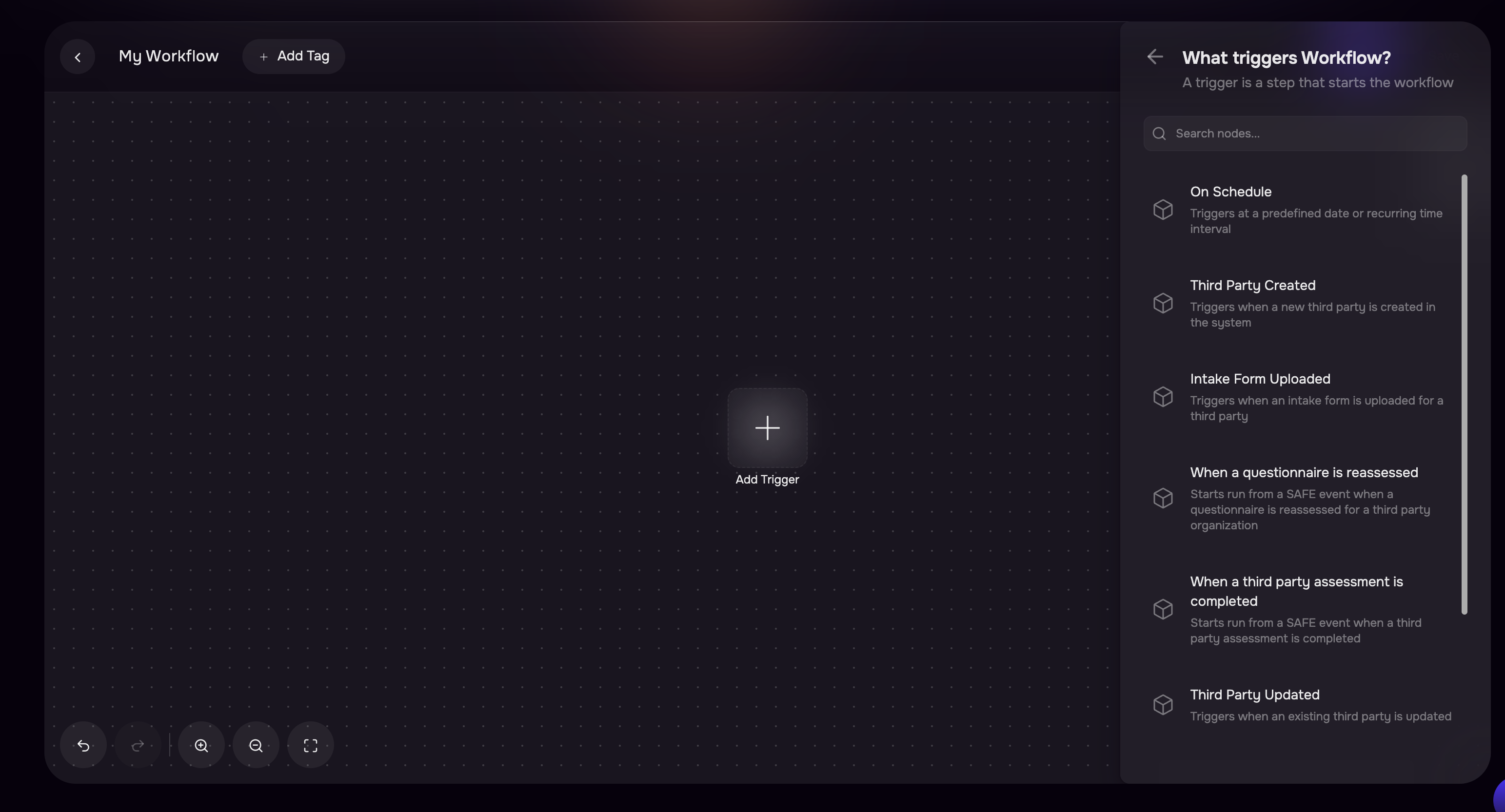
Triggers
Every workflow begins with a trigger that defines when execution starts. SAFE supports three categories of triggers, and you configure each one to respond to the specific events or schedules relevant to your process.
Event-Based Triggers
Event-based triggers start a workflow when a specific action occurs in SAFE. You select the event type and optionally configure filters to narrow which events activate the workflow.
Trigger | Fires When |
|---|---|
Third Party Created | A new third party organization is created in SAFE |
Third Party Updated | An existing third party’s fields are modified |
Questionnaire Created | A questionnaire is assigned to a third party |
Questionnaire Reassessed | A questionnaire iteration is reassessed |
Questionnaire Submitted | A questionnaire response is submitted |
Assessment Completed | A third party assessment is completed |
Issue Created | A new issue is created in SAFE |
Intake Form Uploaded | An intake form document is uploaded for a third party |
Example: A compliance team creates a workflow triggered by Third Party Created that automatically assigns a security questionnaire, sets a review frequency, and notifies the vendor contact , ensuring every new vendor follows the same onboarding process.
Schedule Trigger
The Schedule trigger runs a workflow on a recurring basis. You configure the frequency (daily, weekly, monthly, quarterly, or a custom cron expression) and timezone.
Example: A risk team creates a workflow with a Schedule trigger set to run monthly. The workflow retrieves all third parties due for reassessment, reassesses their questionnaires, and sends summary emails to the risk manager — automating the entire periodic review cycle.
Manual Trigger (Execute Now)
The Manual trigger allows you to run a workflow on demand. When you click Execute Now, SAFE prompts you for any required inputs (such as selecting a specific third party) and starts the workflow immediately.
Example: An analyst receives an urgent request to onboard a specific vendor. Instead of waiting for the event trigger, the analyst opens the onboarding workflow, clicks Execute Now, selects the vendor, and the workflow runs immediately with all the same automated steps.
Actions
Actions are the operational nodes in a workflow, they perform concrete operations in SAFE and integrated systems. Each action’s configuration is fully customizable: you select which fields to update, which questionnaires to assign, which email template to send, and which conditions to apply.
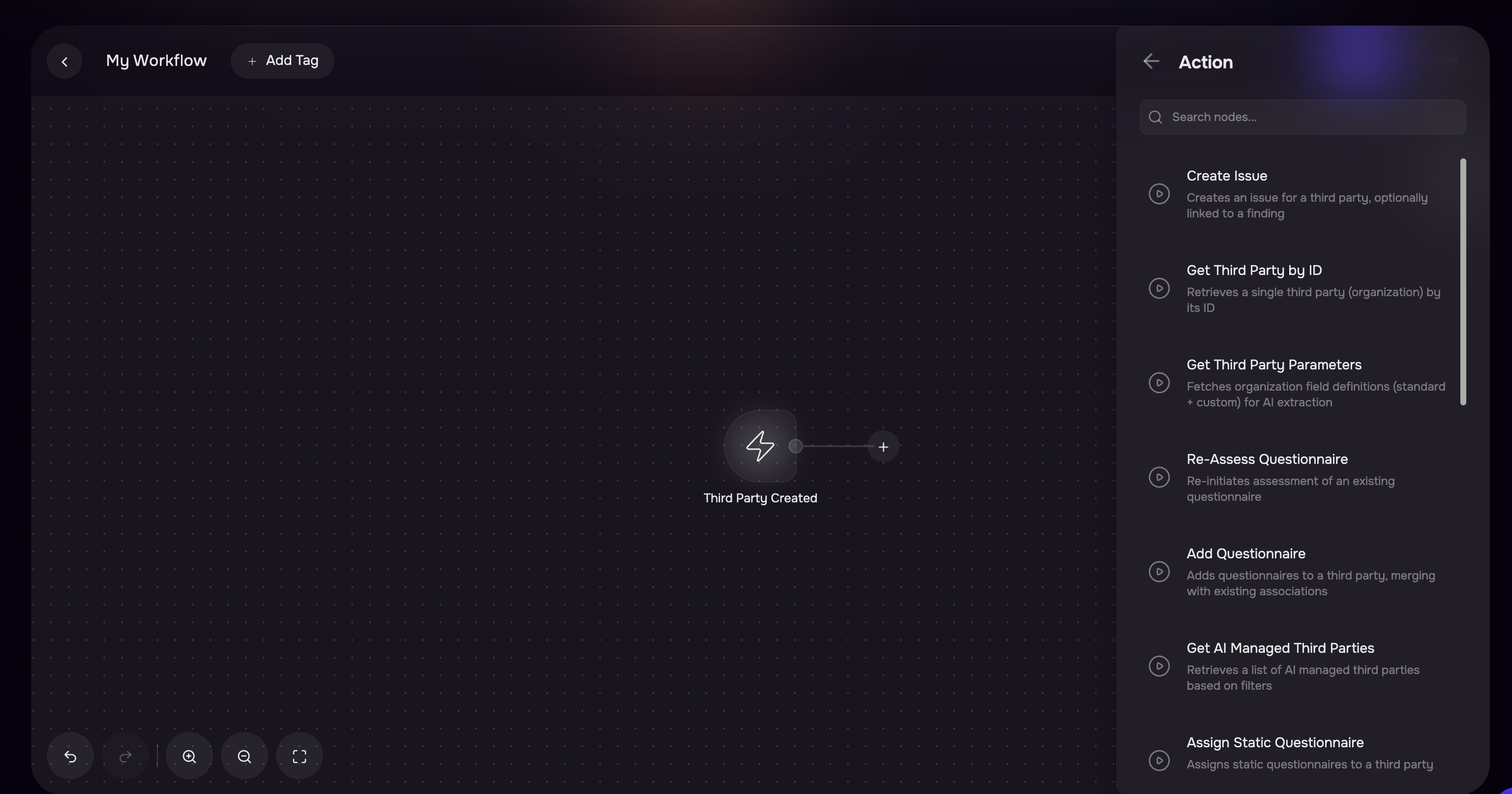
Third Party Risk Management
Action | Description |
|---|---|
Update Third Party | Updates one or more fields on a third party record. You select which fields to modify and define the values — static or dynamically referenced from previous nodes. |
Get Third Parties | Retrieves a list of third party organizations based on filters you define. Produces a stream of items that downstream nodes process individually. |
Get Third Party by ID | Retrieves a single third party by its identifier. Use this when a trigger provides a third party ID and you need the full record. |
Initiate Outside-In | Triggers an outside-in assessment scan for a third party. |
Get Outside-In Findings | Retrieves outside-in assessment findings for a third party, producing a stream of findings for downstream processing. |
Questionnaires and Assessments
Action | Description |
|---|---|
Assign Questionnaire | Assigns one or more questionnaires to a third party. You configure which questionnaire templates to assign and whether to reuse existing instances. |
Re-Assess Questionnaire | Triggers reassessment of an existing questionnaire instance. |
AI Assess Questionnaire | Uses AI to automatically evaluate questionnaire responses based on outside-in assessment data. |
Get Questionnaires | Retrieves questionnaire instances for a third party, producing a stream for downstream processing. |
Create Assessment Request | Creates a formal assessment request with configurable due dates, assignee policies, and auto-review settings. |
Complete Intake Form Upload | Finalizes the processing of an uploaded intake form document. |
Issues
Action | Description |
|---|---|
Create Issue | Creates a new remediation issue in SAFE. You configure the issue title, description, priority, assignee, and due date — using static values or dynamic references from previous nodes. |
Update Issue | Updates fields on an existing issue. |
Notifications and Scheduling
Action | Description |
|---|---|
Send Email | Sends a template-based email notification. You select the email template, define recipients, and map dynamic fields from previous node outputs into the email body. |
Schedule Reminders | Schedules reminder notifications to be sent before a due date. You configure how many days before the due date the reminder fires. |
Flow Controls
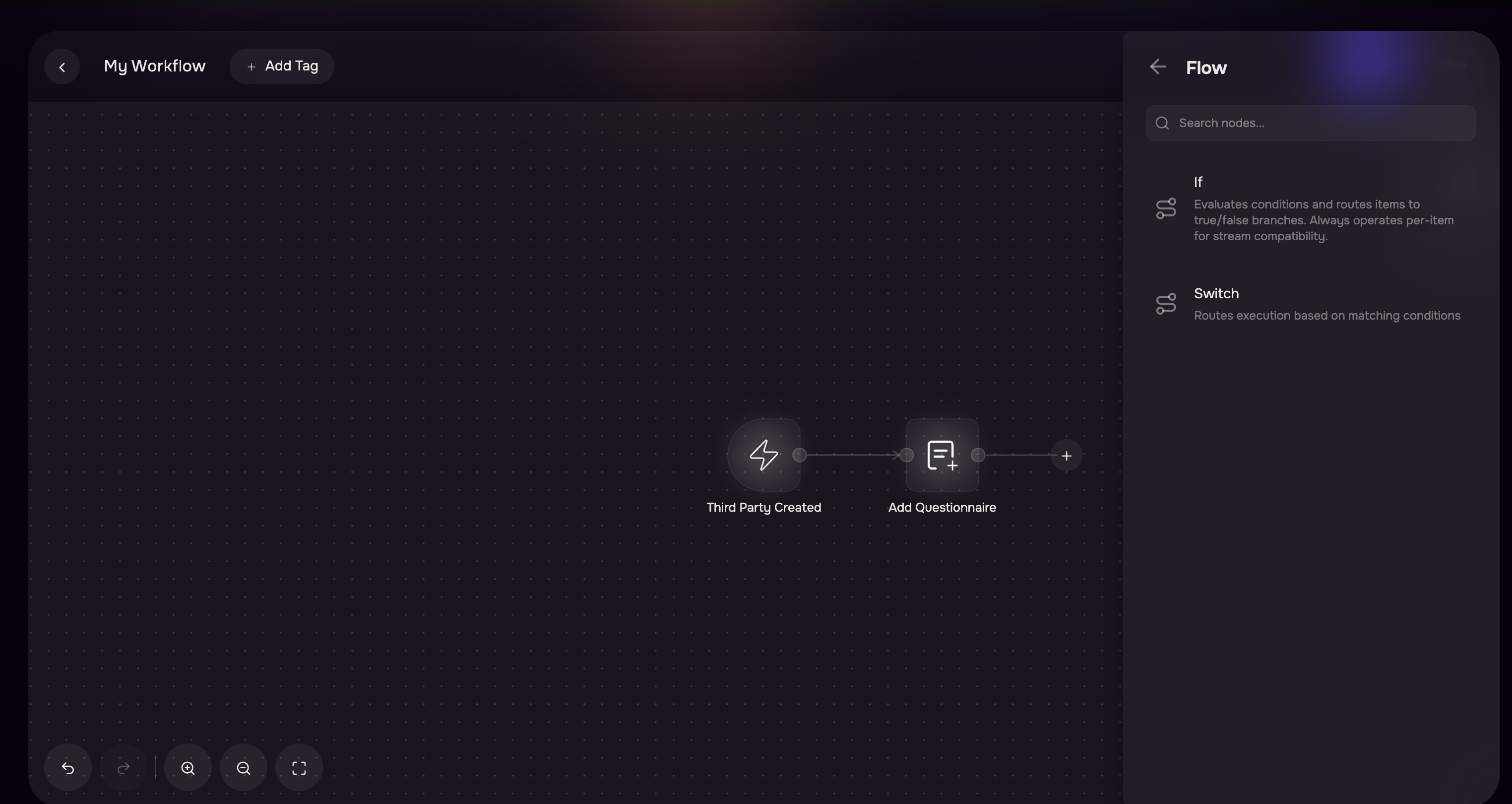
Flow controls let you add conditional logic and branching to your workflows. You define the conditions, and SAFE routes execution accordingly.
If Condition
The If Condition node evaluates one or more rules and routes execution to a true or false branch. You build conditions using a visual condition builder that supports:
Multiple rules combined with AND or OR logic
Comparison operators: equals, not equals, contains, greater than, less than, is empty, is not empty, and more
Dynamic references to outputs from previous nodes
Example: In a third party review workflow, an If Condition checks whether the third party’s risk score exceeds a threshold. If true, the workflow creates a high-priority issue and sends an alert email. If false, the workflow logs the result and continues to the next scheduled review.
Switch Router
The Switch Router node evaluates multiple cases and routes execution to the first matching path. Each case has its own set of conditions, and a default path handles unmatched items. You define as many cases as your process requires.
Example: In the Tier-Based Third Party Onboarding template, a Switch Router examines the third party’s tier classification and routes to different paths — Critical, High, or Medium — each with its own questionnaire assignments, review frequencies, and notification settings.
Implicit Item Streaming
When an action produces a list of items (such as Get Third Parties returning multiple organizations), downstream nodes automatically process each item individually. This implicit streaming means you do not need to add explicit loop nodes for most scenarios — SAFE handles the fan-out and fan-in automatically.
Expander nodes (like Get Third Parties) produce a stream of items from a single input
Per-Item nodes (like Update Third Party, Send Email) execute once for each item in the stream
Reducer nodes (like AI Summary in aggregate mode) collect all items and produce a single output
Example: A scheduled workflow retrieves all third parties due for review (Expander), updates each one’s review date (Per-Item), and then generates a single summary report of all updates (Reducer) — all without explicit loop configuration.
AI-Powered Tasks
SAFE workflows include AI-powered nodes that bring intelligent data extraction, transformation, and summarization directly into your automated processes. You write the prompts that guide the AI, giving you full control over what the AI produces.
AI Transform
The AI Transform node extracts and transforms data from previous node outputs based on prompts you define. It processes each item individually, making it ideal for structured extraction from unstructured or semi-structured data.
You configure AI Transform by defining:
Output fields — Named fields with descriptive prompts that tell the AI what to extract or compute. Each field produces a structured value in the node’s output.
Input context — References to data from previous nodes that the AI uses as source material.
Example (Intake Form Review): The Intake Form AI Review template uses AI Transform to parse uploaded vendor intake forms. The node defines output fields like “vendor_name,” “services_provided,” “data_handling_practices,” and “compliance_certifications.” The AI reads the unstructured document content and extracts each field into a structured record that downstream nodes can use for conditional routing and issue creation.
Example: Third Party Risk Classification: A workflow uses AI Transform to analyze a third party’s outside-in findings and produce a structured risk assessment with fields for “overall_risk_level,” “key_vulnerabilities,” and “recommended_actions.” Downstream nodes use these fields to route the third party to the appropriate remediation path.
AI Summary
The AI Summary node generates structured summaries from workflow data. You configure the tone (Professional, Friendly, Formal, or Concise) and the processing mode.
Two processing modes are available:
Aggregate mode (default): Collects all items in the stream and produces a single summary. Use this when you need a consolidated view across multiple items.
Per-Item mode: Generates an individual summary for each item in the stream. Use this when each item needs its own summary.
You provide the inputs to summarize by referencing outputs from previous nodes.
Example (Portfolio Review Summary): The Scheduled Third Party Review with AI template uses AI Summary in aggregate mode to produce a single executive summary across all reviewed third parties. The summary includes risk trends, notable findings, and recommended follow-up actions — delivered in a Professional tone and sent via email to the risk manager.
Example (Per-Vendor Finding Summary): A workflow retrieves outside-in findings for each third party in a portfolio, then uses AI Summary in per-item mode to generate an individual finding summary for each vendor. Each summary is attached to the vendor’s record for analyst review.
Versions and Publishing
Workflows use a version control system that separates editing from live execution. This ensures that changes to a workflow do not affect running automations until you explicitly publish them.
Version Lifecycle
Every workflow follows a three-state lifecycle:
Status | Description |
|---|---|
Draft | The editable version. You make all changes to the draft. Each workflow has at most one draft at a time. |
Published | The active version. Only the published version responds to trigger events and scheduled runs. Publishing a new version automatically archives the previous published version. |
Archived | A read-only historical version. Archived versions are retained for audit and reference but do not execute. |

Publishing a Workflow
Publishing a workflow version activates it for live execution:
The draft version’s status changes to Published.
If a previously published version exists, its status changes to Archived.
SAFE creates or updates trigger bindings that link the workflow to its trigger events. Incoming events matching the trigger type are routed to this workflow.
If the workflow uses a Schedule trigger, SAFE creates or updates the schedule in the scheduling system with the configured frequency and timezone.
Unpublishing a Workflow
You can unpublish a published version to deactivate it. Unpublishing:
Changes the version’s status back to Draft
Deactivates all trigger bindings for the workflow
Removes any active schedules
No new runs start after unpublishing. In-progress runs complete normally.
Workflow Runs and Monitoring
Every time a workflow executes, whether triggered by an event, a schedule, or a manual Execute Now action, SAFE creates a run record that tracks the execution from start to finish.
Run Statuses
Status | Meaning |
|---|---|
Pending | The run has been created but execution has not started yet. |
Running | The workflow is actively executing its nodes. |
Completed | All nodes executed successfully. |
Failed | One or more nodes encountered an error. The failed node is highlighted in the run details. |
Cancelled | The run was cancelled before completion. |
Viewing Execution History
Navigate to Workflows.
Select a workflow to view the execution history.
Select the Execution tab.
The execution list displays each run’s status, trigger type, start time, and duration. You can filter runs by status and sort by date.
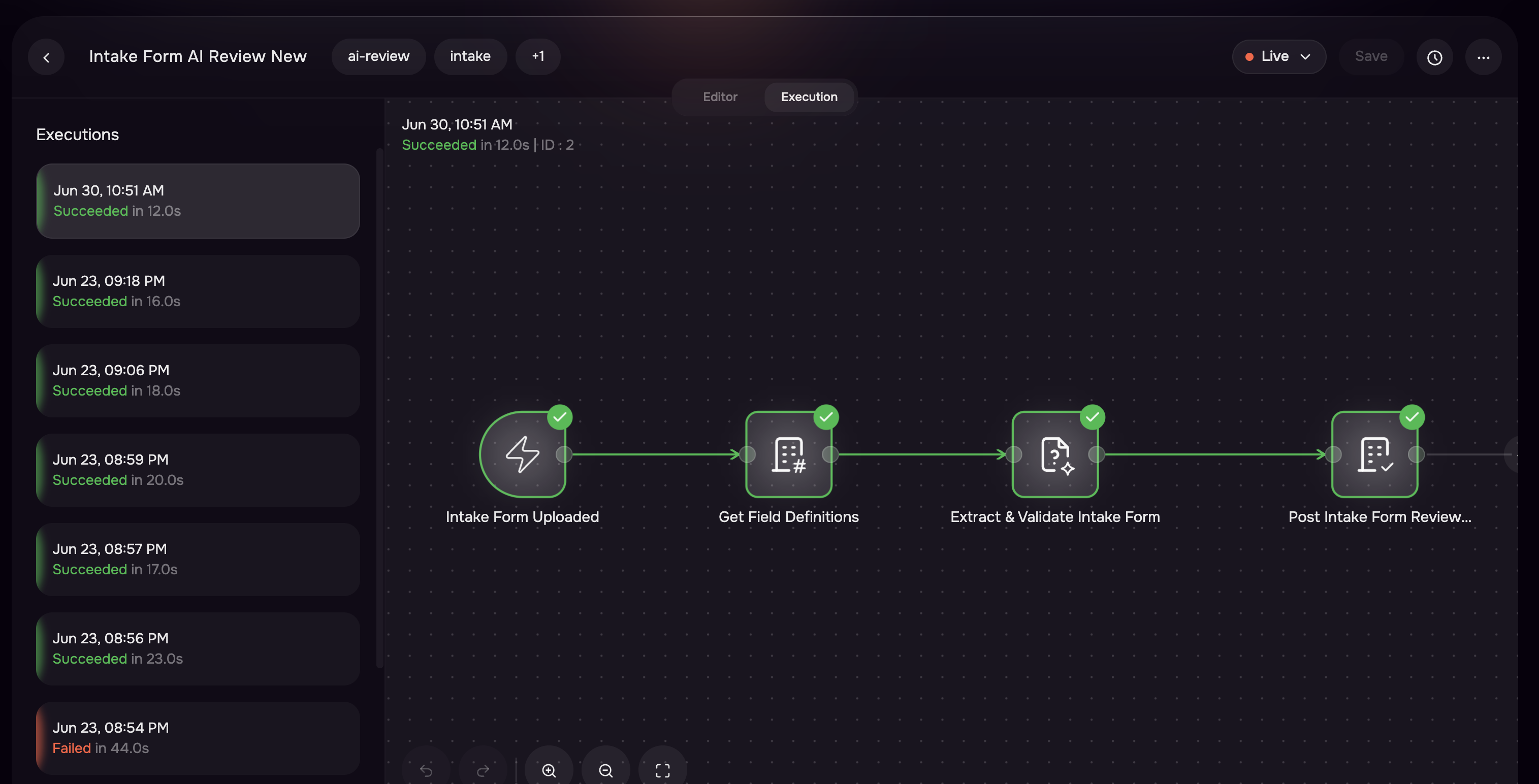
Step-Level Execution Details
Click any run to view its step-by-step execution details. Each step shows:
The node name and type
Execution status (Pending, Running, Completed, Failed, or Skipped)
Input data received by the node
Output data produced by the node
Error details (if the step failed)
This visibility makes it straightforward to identify which node failed and why, enabling quick troubleshooting.
On-Demand Execution of a Workflow (Execute Now)
Execute Now lets you run a published workflow on demand without waiting for a trigger event. This is useful for testing a workflow after publishing, running a one-off execution for a specific entity, or re-running a workflow that previously failed.
Open the workflow you want to run.
Click Execute Now.
If the workflow requires inputs (such as selecting a third party), the system displays an input form. Fill in the required fields.
Click Run.
The system creates a new run and begins execution immediately. You can monitor progress in the Runs tab.
Note
Some trigger types (such as Intake Form Uploaded) do not support Execute Now because they require an actual external event.