Introduction
SAFE provides a centralized view of all the third parties added to your system. This section guides you through accessing and managing the third-parties effectively.
Access Third-party Inventory
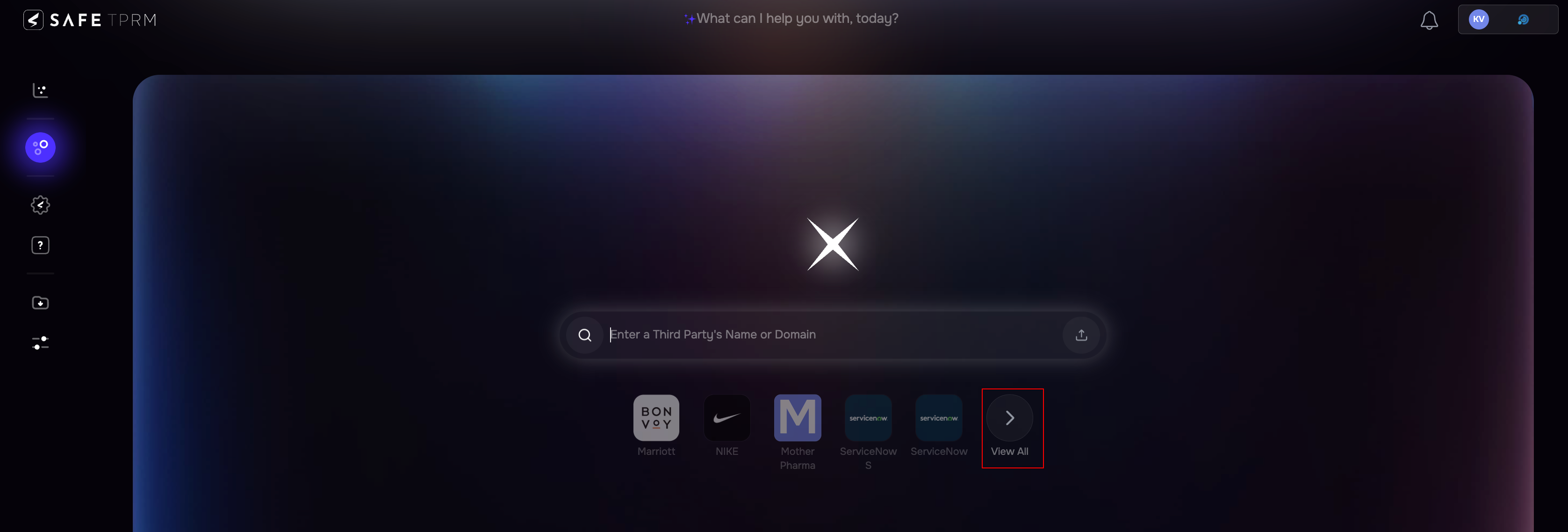
Navigate to Third-Party from the left navigation.
Click the View All button available just below the search bar.
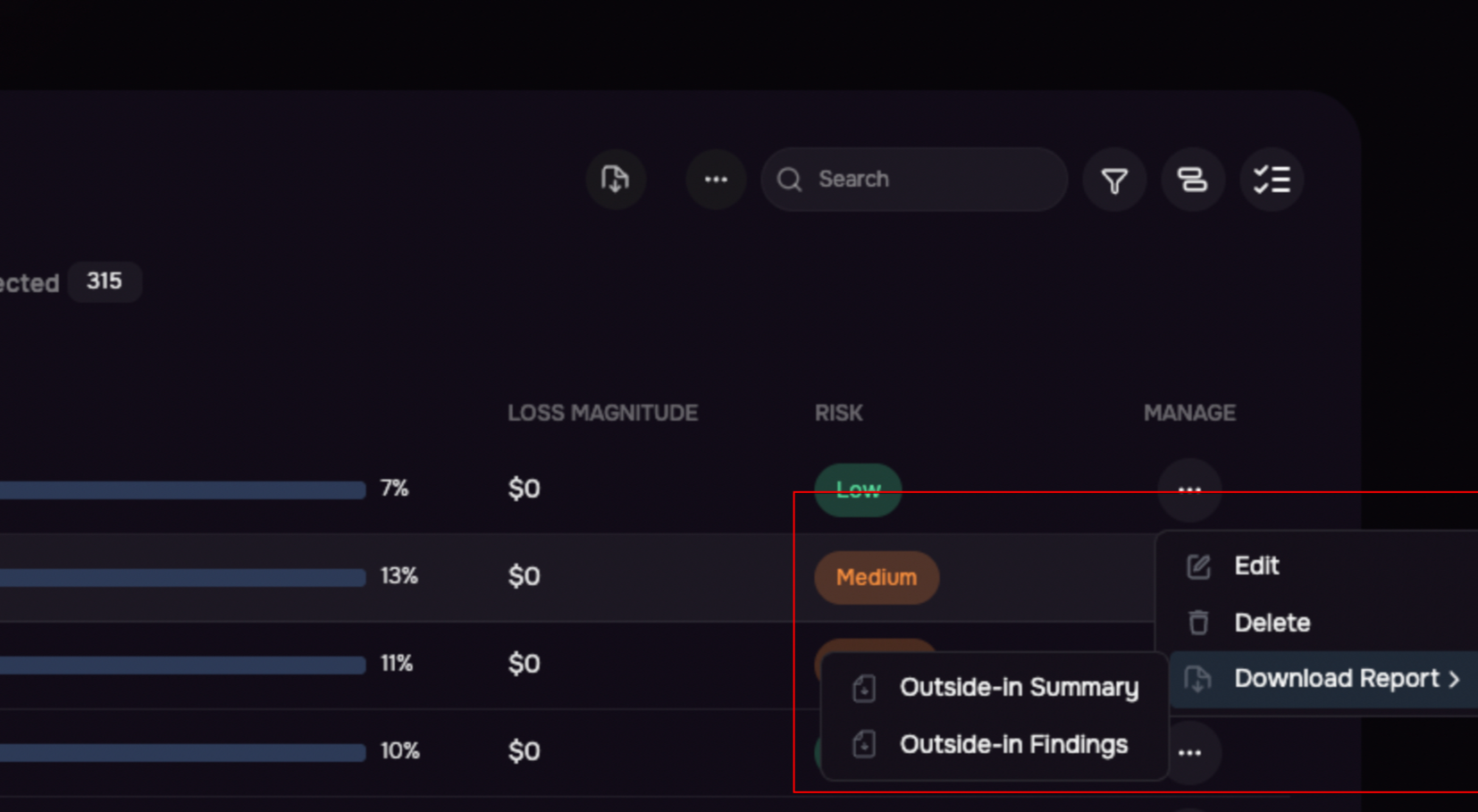
The system displays a list of all third-party organizations added to SAFE. Each record in the list includes key information such as Third-Party Name, Tier, Status, Exposure Score and more. The Manage column provide options to Edit, Delete, or Download the third-party risk report.

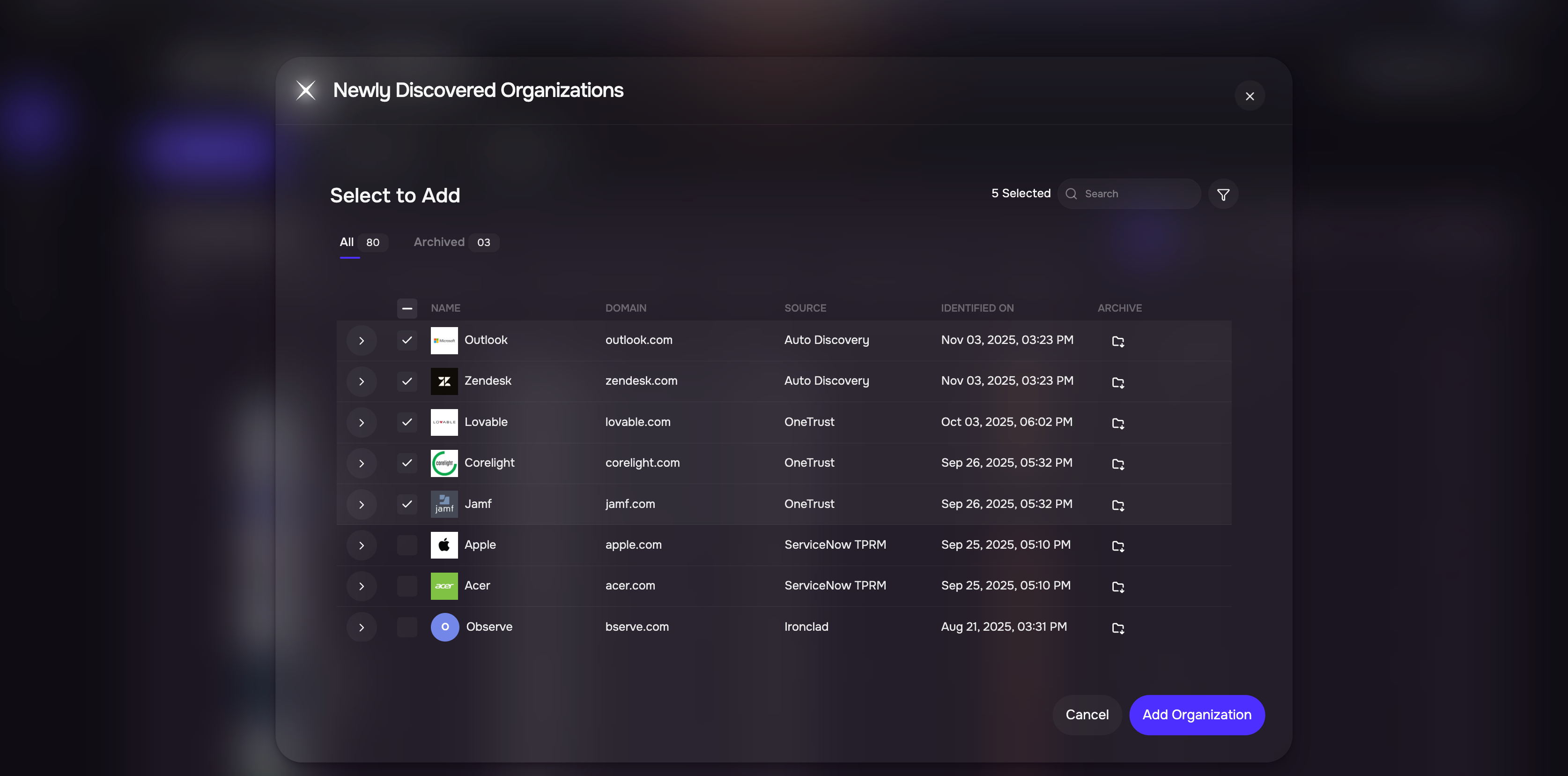
Clicking the Newly Discovered button, system displays all the third-parties discovered via the integrations (learn more here).
This page contains five tabs:
Third Parties: View key insights and a comprehensive list of all third parties in your organization. The list includes essential details such as organization name, risk status, assessment progress, and other relevant information.
Fourth Parties: View key insights and a complete list of fourth-party vendors associated with your third parties. This provides greater visibility into your extended vendor ecosystem and supply chain.

Questionnaires: View key insights and manage all questionnaires in one place. The list displays details such as questionnaire name, associated organization, status, completion progress, due dates, and other relevant information.

Issues: View key insights and track all issues across your third-party ecosystem. The list includes details such as issue summary, associated organization, status, priority, assignee, due date, and other relevant information.

Breach Events: View key insights and monitor breach events associated with your third-party and fourth-party vendors. The list includes details such as the breach name, affected organization, event date, reference link, severity, and other relevant information.

Customize the List View
The Third Parties page provides flexible options to help you organize, search, and manage your vendor inventory efficiently.
Group By: Organize third parties based on key attributes such as Status, Risk, Tier, Access/Dependency, or Tags to quickly analyze and manage similar vendors.
Filters: Refine the list by applying filters such as Status, Tags, Custom Fields, and other available attributes to focus on the vendors that match your criteria.
Select Columns: Customize the table by choosing which columns to display. Tailor the view to highlight the information most relevant to your workflow.
Search: Use the search bar to quickly locate a specific third party by searching for attributes such as the organization name or other relevant details.

Bulk Actions
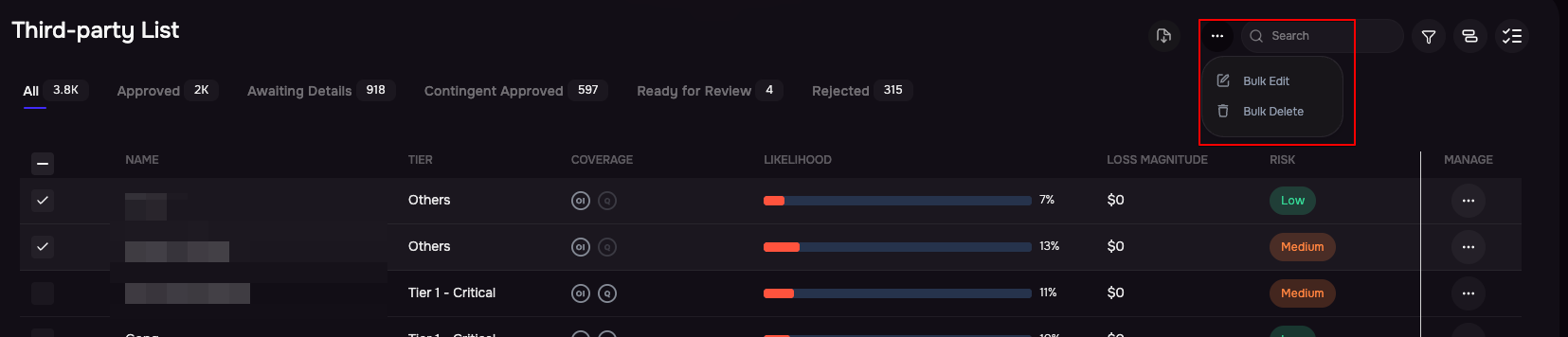
You can edit or delete third-parties in bulk. Just select the third-parties and then clcik the three-dot options menu at the header and select you option.
Download Reports
SAFE allows you to download risk reports for each third-party.
To do this, click the three-dot menu in the Manage column, then select Download Report.
You can choose between the Outside-In Summary Report or the Outside-In Findings Report.
Your report will be generated in the Reports section. Go to Reports from the left-hand navigation and download your report once it's ready.