Introduction
Workflows in SAFE help you automate repetitive CTEM activities across your findings and assets. Instead of manually reviewing findings, creating tickets, creating exceptions, or generating reports each time, you can configure a workflow once and allow SAFE to perform those actions automatically based on a schedule or supported event.
With Workflows for CTEM, you can automate common activities such as:
Generating scheduled findings or asset reports
Creating tickets automatically for findings matching defined criteria
Creating exceptions for findings matching defined criteria
Sending generated reports through email
Looking up tickets and exceptions created earlier in a workflow
Applying conditions and branching logic to determine what a workflow should do next
SAFE provides a visual, drag-and-drop workflow builder along with workflow management capabilities such as Draft, Live, Archive, Starred, search, tags, notes, duplication, version history, Run Now, and JSON download.
Accessing Workflows
To access Workflows:
From the left navigation, select Agentic Workflows.
The Workflows page displays the workflows available for your organization.
If Agentic Workflows does not appear in the navigation or you do not see the expected CTEM nodes, contact your SAFE administrator.
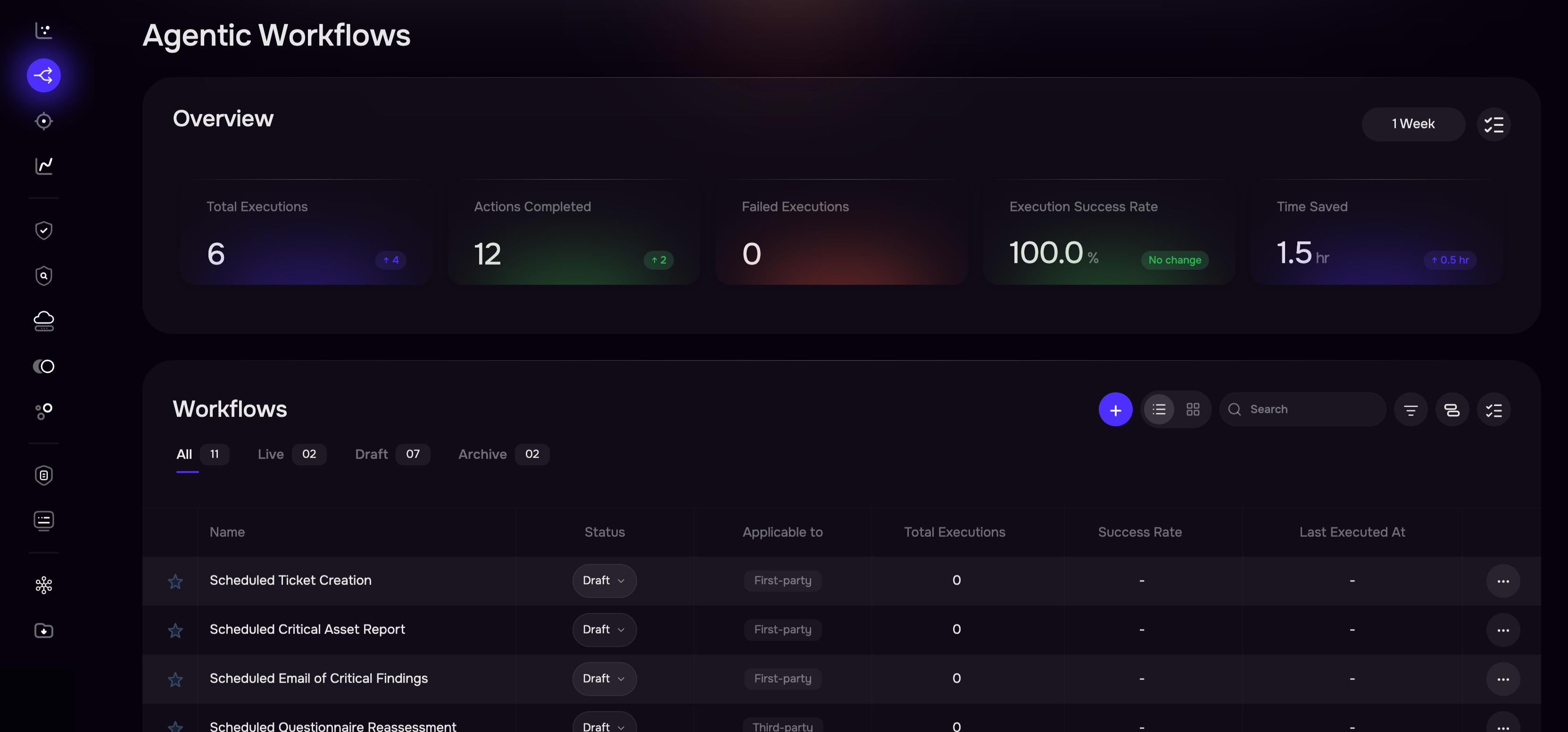
Understanding First-Party and Third-Party Workflows
In environments using both CTEM and TPRM, SAFE separates workflows according to their applicability. A single workflow cannot contain both CTEM and TPRM-specific nodes.
For example, if you need automation for both first-party findings and third-party activities, create two separate workflows. SAFE prevents a workflow containing both CTEM and TPRM nodes from being saved.
Create a Workflow
You can create a workflow either:
From Scratch,
From Template, or
By importing a workflow file
Recommended Workflows option is not available in the CTEM workflow creation flow.
To build a workflow from scratch:
Navigate to Agentic Workflows.
Select the option to create a workflow.
Select From Scratch or form a Temaplate.
Enter the Name and Description.
Add a trigger to define when the workflow should execute.
Add the required action nodes to the workflow canvas.
Connect the nodes in the sequence in which they should execute.
Configure each node.
Save the workflow.
Review the workflow configuration and make it Live when it is ready for use.
You can also use Run Now to execute a workflow manually when you need to test or immediately run the configured automation.

CTEM Workflow Nodes
A workflow is built using nodes. Each node performs a particular activity or controls how the workflow progresses.
The CTEM nodes include:
Node | What It does |
Create Ticket | Creates tickets from a findings filter, using a saved ticketing rule |
Create Exception | Accepts risk or marks false-positive on findings from a filter |
Generate Report | Requests a CSV findings or asset report and waits for it to be ready |
Get Ticket by ID / Get Exception by ID | Reads back a ticket or exception, usually one an earlier node created |
Send Email | Existing node; the template list it offers is now use-case scoped |
On Schedule |

Manage Your Workflows
The Workflows page provides different views to help organize workflows:
All
Live
Draft
Archive
Starred
You can also:
Search workflows
Edit a workflow
Delete a workflow
Duplicate a workflow
Star frequently used workflows
Add tags
Add notes
View version history
Download a workflow as JSON
Run a workflow immediately using Run Now
Group workflows by status or applicability
For environments containing both First-Party and Third-Party use cases, workflows also display their applicability.