Overview
The SAFE platform supports exporting large datasets as CSV reports. Reports are generated asynchronously — once initiated, the report is processed in the background and becomes available for download from the Reports page when ready.
Supported export types:
Export Type | Source Page | Max Rows | Column Selection |
|---|---|---|---|
Findings Report | Findings Listing | 2.5 Million | Findings + Assets |
Unique Findings Report | Findings Listing | 2.5 Million | Findings columns only |
Asset Report | Assets Listing | 1 Million | Asset columns |
Software Report | Asset Details → Software | 250,000 | All software columns (fixed) |
Findings Report Export
Export findings with associated asset data. You can select columns from both Findings and Assets categories.
Navigate to Findings from the left navigation menu.
Apply any filters to narrow down the findings you want to export (e.g., severity, finding type, CVE ID, status).
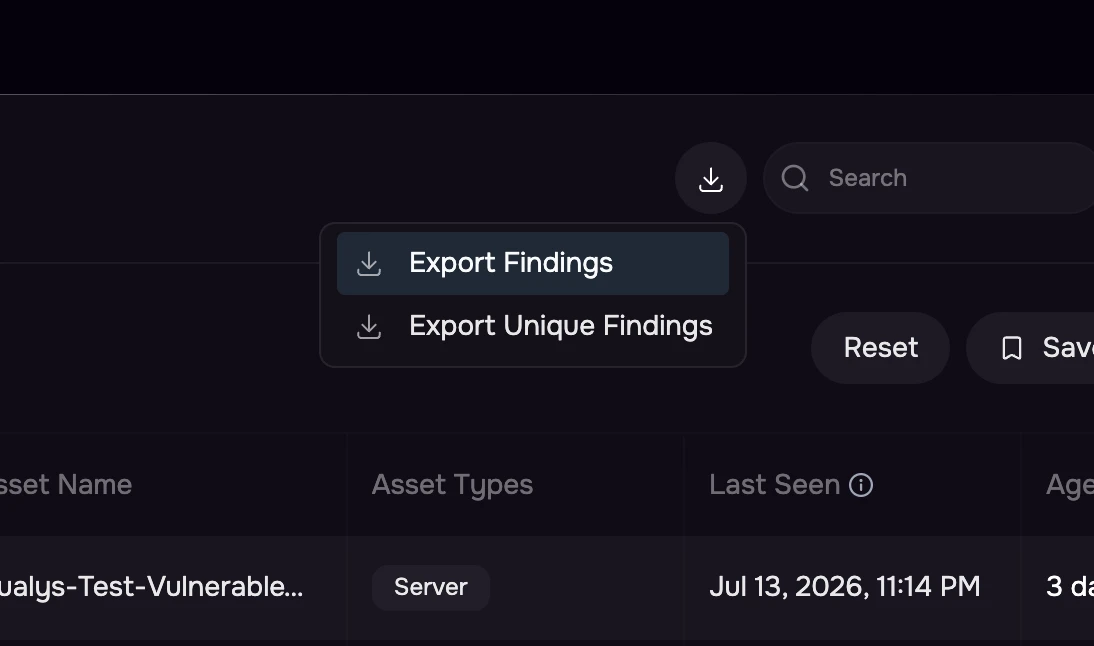
Click the Download button (↓) in the top-right area of the listing.
Select Export Findings from the dropdown menu.
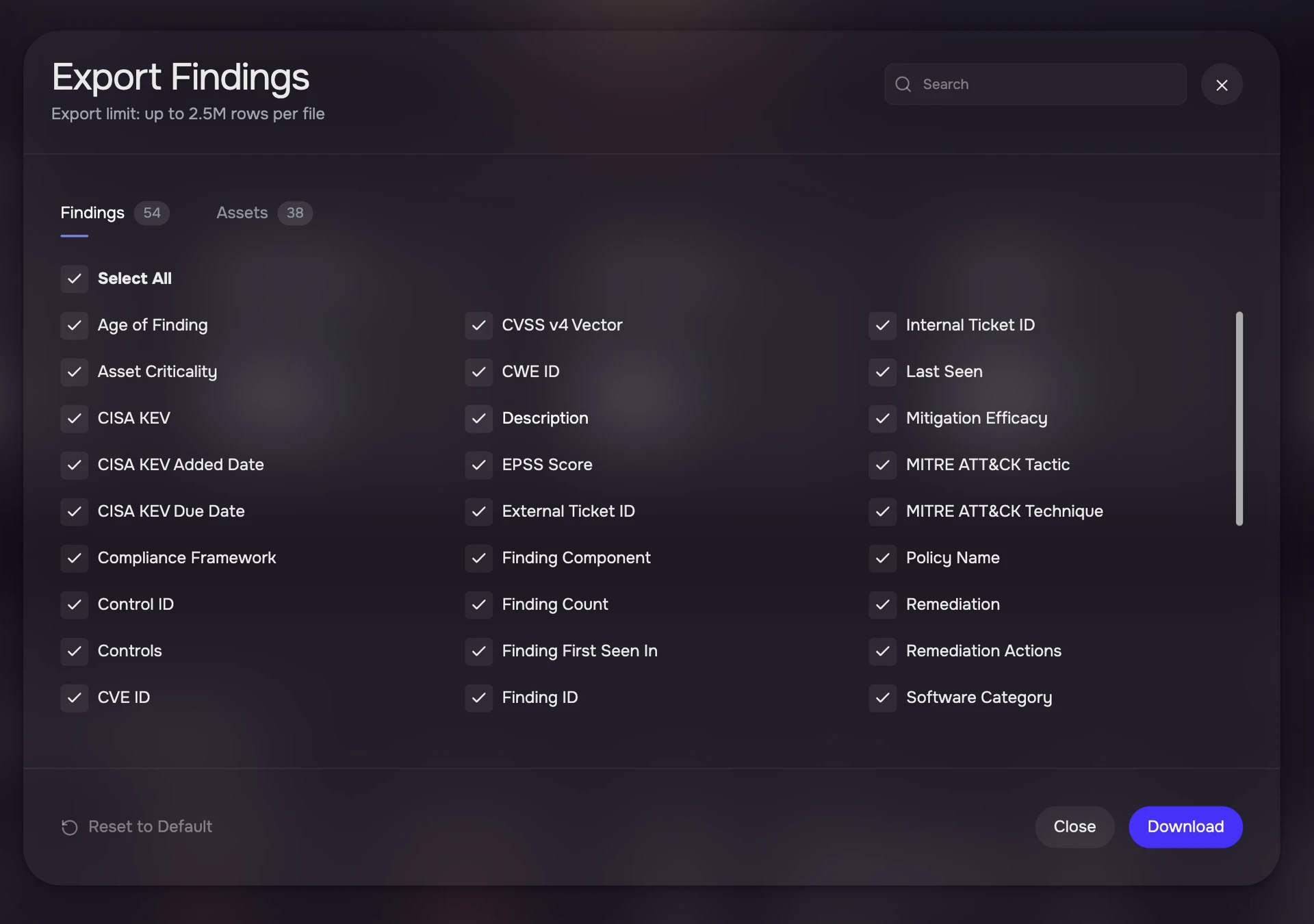
In the Export Findings dialog, choose columns from two tabs:
Findings tab (54 columns available) — includes Finding Name, Severity, CVE ID, EPSS Score, CISA KEV, etc.
Assets tab (38 columns available) — includes Asset Name, Asset Criticality, IP Address, Cloud Region, etc.
Click Download to initiate the export.
A success notification will appear confirming the report is being generated.
Navigate to Reports from the left navigation menu to check the status and download the report once ready.
Findings Column Keys (API Reference)
Display Name | API Column Key |
|---|---|
Finding ID |
|
Finding Name |
|
Title |
|
Finding Type |
|
Status |
|
First Seen |
|
Last Seen |
|
CVE Published Date |
|
CVE ID |
|
CWE ID |
|
Finding Severity |
|
Finding Score |
|
Fix Available |
|
CISA KEV |
|
CISA KEV Added Date |
|
CISA KEV Due Date |
|
EPSS Score |
|
CVSS v2 Score |
|
CVSS v3 Score |
|
CVSS v4 Score |
|
CVSS v2 Severity |
|
CVSS v3 Severity |
|
CVSS v4 Severity |
|
CVSS v2 Vector |
|
CVSS v3 Vector |
|
CVSS v4 Vector |
|
Asset Criticality |
|
Compliance Framework |
|
MITRE ATT&CK Tactic |
|
MITRE ATT&CK Technique |
|
Remediation Actions |
|
Description |
|
Finding Component |
|
Asset Count |
|
Finding Count |
|
Ticketed |
|
Onboarding Source |
|
Contributing Sources |
|
Source Name |
|
Mitigation Efficacy |
|
Policy Name |
|
Control ID |
|
Controls |
|
Asset Columns (available in Findings export)
Display Name | API Column Key |
|---|---|
Asset Name |
|
Asset Types |
|
Asset Subtype |
|
Asset Last Analysed |
|
IP Address |
|
Subnet |
|
Criticality |
|
Domain |
|
Serial Number |
|
Hardware ID |
|
Attack Surface |
|
Cloud Resource ID |
|
Location |
|
Region |
|
Cloud Region |
|
Cloud Provider |
|
Cloud Instance ID |
|
OS Platform |
|
Zone |
|
Business Owner |
|
VM Owner |
|
IT Owner |
|
Device Owner |
|
Cloud Account ID |
|
Cloud Resource Group |
|
CPU Model Name |
|
BIOS Version |
|
BIOS Vendor |
|
BIOS Release Date |
|
Operating System |
|
OS Vendor |
|
OS Version |
|
System Manufacturer |
|
OS Release Install Date |
|
Cloud Service Provider |
|
Asset Exposure Score |
|
Asset Tags |
|
Unique Findings Report Export
Export deduplicated findings (one row per unique finding across all assets). Asset columns are not supported in this export type.
Navigate to Findings from the left navigation menu.
Apply any filters to narrow down the findings you want to export.
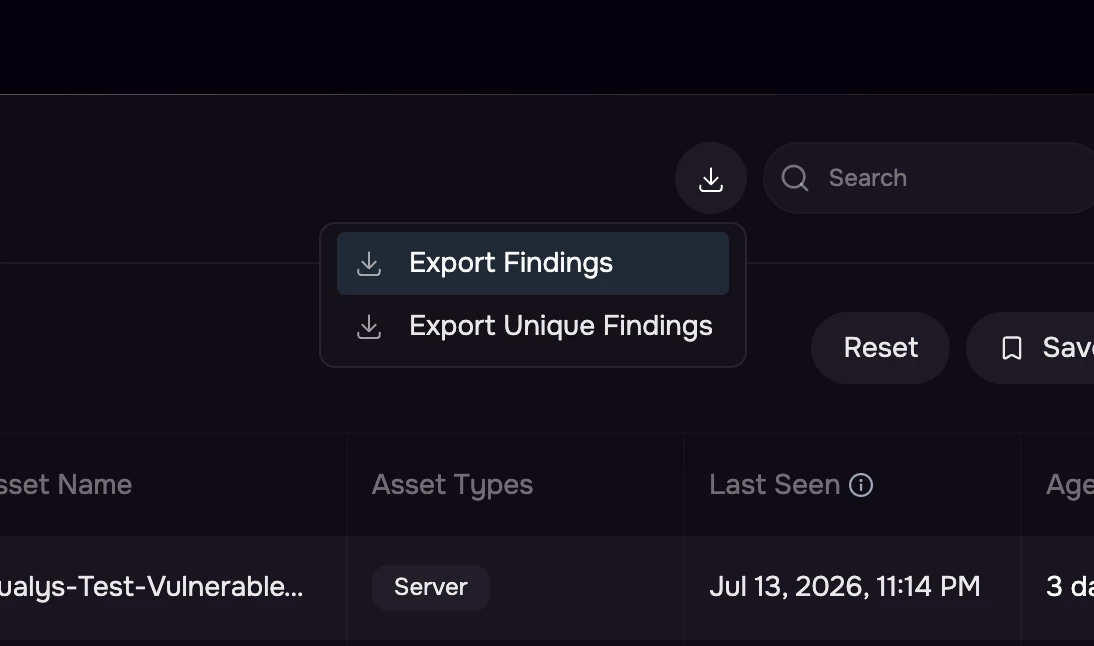
Click the Download button (↓) in the top-right area of the listing.
Select Export Unique Findings from the dropdown menu.
In the Export Unique Findings dialog, select the findings columns you wish to include. Only finding-level columns are available (asset columns are not applicable for deduplicated findings).
Click Download to initiate the export.
A success notification will appear confirming the report is being generated.
Navigate to Reports from the left navigation menu to check the status and download the report once ready.
Notes
Unique findings are deduplicated by FINDING_ID. For findings that appear on multiple assets, only the instance with the highest exposure score is included.
Asset Report Export
Export asset inventory data directly from the Assets listing page.
Navigate to Assets from the left navigation menu.
Apply any filters to narrow down the assets you want to export (e.g., asset type, criticality, zone, attack surface).
Click the Download button (↓) in the top-right area of the listing.
In the Export Assets dialog, select the columns you wish to include from the available asset columns.
Click Download to initiate the export.
A success notification will appear confirming the report is being generated.
Navigate to Reports from the left navigation menu to check the status and download the report once ready.
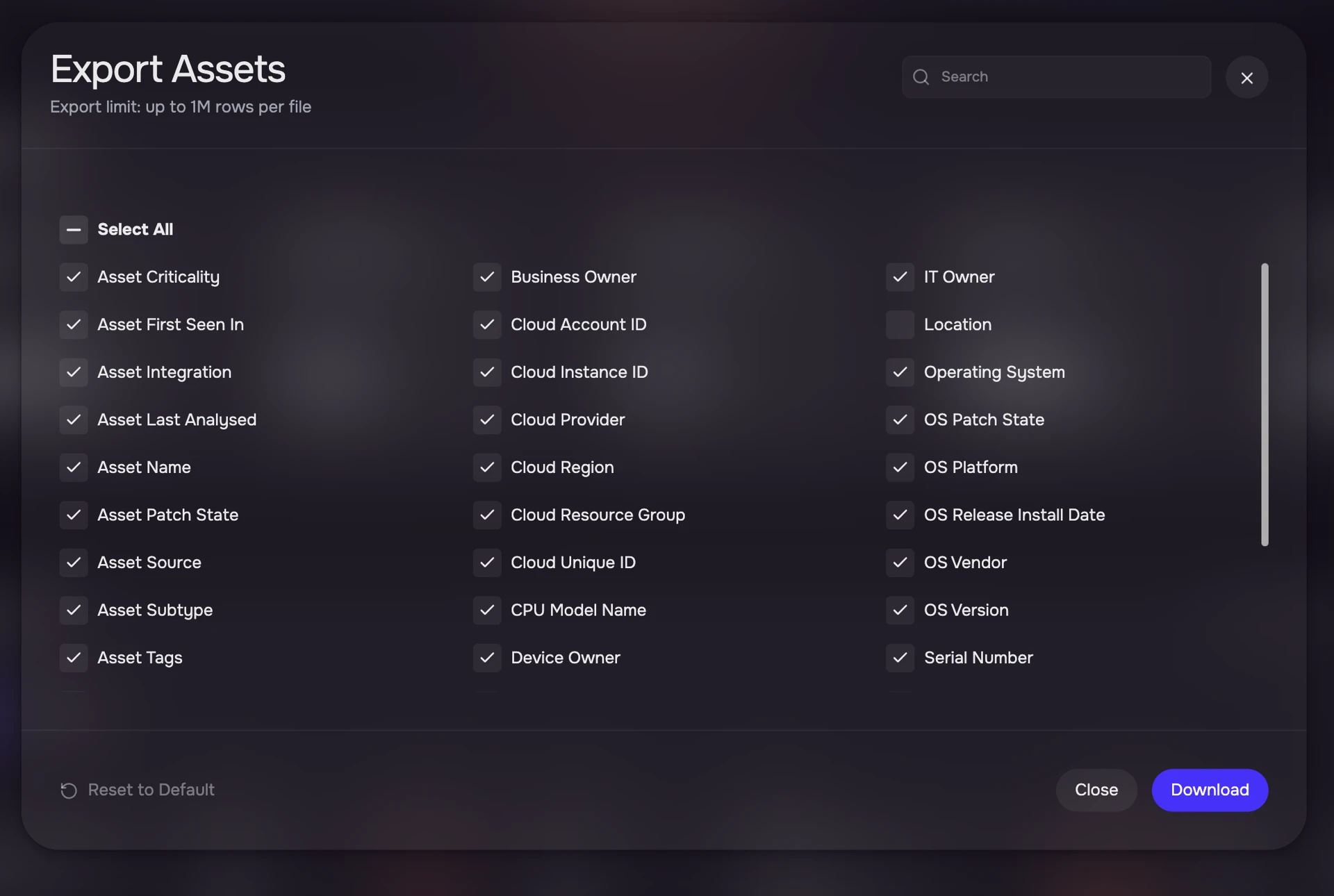
Asset Export Column Keys (API Reference)
Display Name | API Column Key | Default |
|---|---|---|
Asset Name |
| Yes |
Asset Types |
| Yes |
Asset Subtype |
| No |
Asset Criticality |
| Yes |
Findings Count |
| Yes |
IP Address |
| Yes |
Subnet |
| No |
Asset Score |
| No |
Asset Last Analysed |
| No |
Attack Surface |
| No |
Zone |
| Yes |
OS Platform |
| Yes |
Location |
| No |
Serial Number |
| No |
Cloud Unique ID |
| No |
Cloud Region |
| Yes |
Cloud Instance ID |
| No |
Cloud Provider |
| Yes |
Cloud Account ID |
| Yes |
Cloud Resource Group |
| No |
Business Owner |
| No |
VM Owner |
| Yes |
IT Owner |
| No |
Device Owner |
| No |
Asset Patch State |
| No |
OS Patch State |
| No |
EDR Status |
| No |
Hardening Status |
| No |
CPU Model Name |
| No |
BIOS Version |
| No |
BIOS Vendor |
| No |
BIOS Release Date |
| No |
Operating System |
| No |
OS Vendor |
| No |
OS Version |
| No |
System Manufacturer |
| No |
Image Tag |
| No |
OS Release Install Date |
| No |
Asset Tags |
| No |
Asset First Seen In |
| No |
Asset Integration |
| No |
Asset Source |
| No |
Software Report Export
Export software inventory for a specific asset. This export includes all software detected on the selected asset with their patch states, categories, and sources.
Navigate to Assets from the left navigation menu.
Click on the asset you want to export software data for. This opens the Asset Details page.
Click the Software tab in the asset details view.
Scroll down to the Software listing table.
Click the Download button (↓) in the top-right area of the software listing.
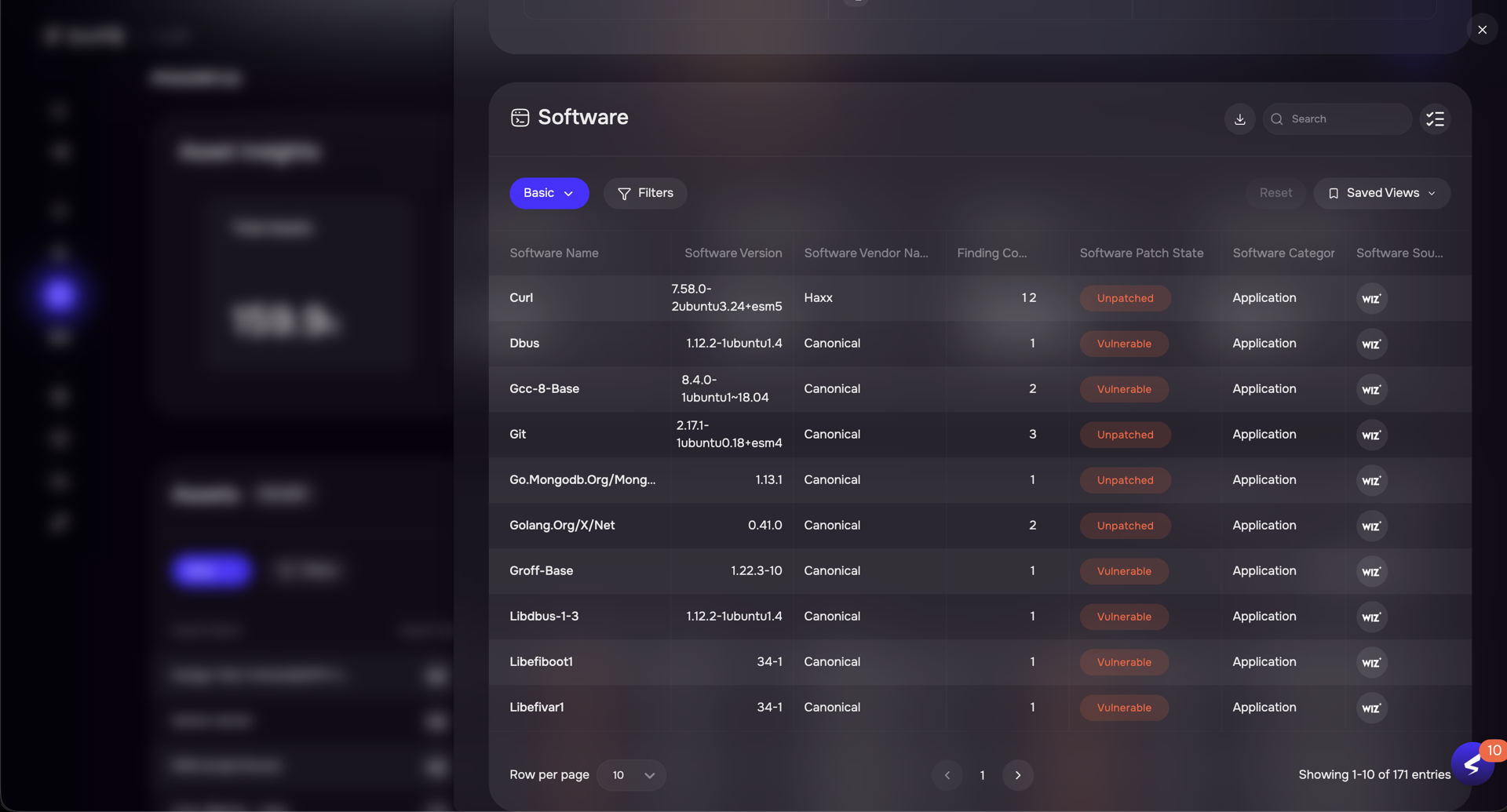
A success notification will appear confirming the report is being generated.
Navigate to Reports from the left navigation menu to check the status and download the report once ready.
Note
The software export downloads all columns automatically. There is no column selection dialog for this export type. The exported columns include: Software Name, Software Version, Software Vendor Name, Finding Count, Software Patch State, Software Category, Software Sub Category, and Software Source.
Report Export via API
All report exports can also be triggered programmatically using the SAFE REST API. This is useful for automation, scheduled exports, or integration with external systems.
Authentication
The SAFE API uses a two-step authentication process:
Step 1: Obtain an access token
curl -X POST 'https://<TENANT_URL>/api/v3/auth' \
  -u '<USERNAME>:<API_TOKEN>' \
  -H 'Content-Type: application/json'
This returns a JSON response containing an accessToken.
Step 2: Use the access token
Include the token as a Bearer token in all subsequent API requests:
Authorization: Bearer <ACCESS_TOKEN>Create Report (POST /api/v3/reports)
Initiate a report export. The report is generated asynchronously.
Endpoint: POST /api/v3/reports
Request Body Structure:
{
  "type": "<REPORT_TYPE>",
  "subType": "<SUB_TYPE>",
  "format": "csv",
  "fileName": "<optional-custom-filename>",
  "reportMeta": {
    "columns": ["<column_key_1>", "<column_key_2>", ...],
    "filter": "<optional-JSON-filter-string>",
    "searchKey": "<optional-text-search>"
  }
}
Report Types
Export | Type | Sub Type |
|---|---|---|
Findings |
|
|
Unique Findings |
|
|
Assets |
|
|
Software |
| (not required) |
Example: Export Findings with specific columns and filter
curl -X POST 'https://<TENANT_URL>/api/v3/reports' \
  -H 'Authorization: Bearer <ACCESS_TOKEN>' \
  -H 'Content-Type: application/json' \
  -d '{
    "type": "FINDINGS",
    "subType": "FINDINGS_W_ASSETS",
    "format": "csv",
    "fileName": "findings-export",
    "reportMeta": {
      "columns": ["findingName", "severity", "cveIds", "epss", "assetName"],
      "filter": "{\"criterion\":{\"attribute\":\"severity\",\"operator\":\"IN\",\"value\":[\"Critical\",\"High\"]}}"
    }
  }'
Example: Export Unique Findings
curl -X POST 'https://<TENANT_URL>/api/v3/reports' \
  -H 'Authorization: Bearer <ACCESS_TOKEN>' \
  -H 'Content-Type: application/json' \
  -d '{
    "type": "FINDINGS",
    "subType": "FINDINGS",
    "format": "csv",
    "fileName": "unique-findings-export",
    "reportMeta": {
      "columns": ["findingName", "severity", "score", "cisaKev", "epss"]
    }
  }'
Example: Export Assets
curl -X POST 'https://<TENANT_URL>/api/v3/reports' \
  -H 'Authorization: Bearer <ACCESS_TOKEN>' \
  -H 'Content-Type: application/json' \
  -d '{
    "type": "SIGMA_ASSETS",
    "subType": "ASSETS",
    "format": "csv",
    "fileName": "assets-export",
    "reportMeta": {
      "columns": ["assetName", "assetTypes", "criticality", "zone", "cloudRegion"]
    }
  }'
Example: Export Software for an asset
curl -X POST 'https://<TENANT_URL>/api/v3/reports' \
  -H 'Authorization: Bearer <ACCESS_TOKEN>' \
  -H 'Content-Type: application/json' \
  -d '{
    "type": "ASSET_SOFTWARES",
    "format": "csv",
    "fileName": "software-export",
    "reportMeta": {
      "assetId": "<ASSET_ID>"
    }
  }'
Poll Report Status (GET /api/v3/reports)
Check the status of your reports.
curl -X GET 'https://<TENANT_URL>/api/v3/reports' \
  -H 'Authorization: Bearer <ACCESS_TOKEN>'
Response includes a list of reports with their current status (IN_PROGRESS, SUCCESS, or FAILED).
Download Report (GET /api/v3/reports/:uuid)
Once the report status is SUCCESS, download it using the report UUID:
curl -X GET 'https://<TENANT_URL>/api/v3/reports/<REPORT_UUID>' \
  -H 'Authorization: Bearer <ACCESS_TOKEN>'
This returns a pre-signed S3 URL valid for 5 minutes. Use this URL to download the CSV file:
curl -o report.csv '<PRE_SIGNED_URL>'Filter Syntax
The filter field in reportMeta accepts a JSON string with the following structure:
Single criterion:
{
  "criterion": {
    "attribute": "<ATTRIBUTE_NAME>",
    "operator": "<OPERATOR>",
    "value": <VALUE>
  }
}
Multiple conditions:
{
  "logicalCondition": "AND",
  "conditions": [
    { "criterion": { "attribute": "severity", "operator": "IN", "value": ["Critical", "High"] } },
    { "criterion": { "attribute": "cisaKev", "operator": "EQUALS", "value": true } }
  ]
}
Supported operators:
Operator | Description | Value Type |
|---|---|---|
| Exact match | string / boolean |
| Pattern match (SQL LIKE) | string |
| Negated pattern match | string |
| Substring match | string |
| Negated substring match | string |
| Value in list | array |
| Value not in list | array |
| Range (inclusive) | array [min, max] |
| Outside range | array [min, max] |
Note
All operator values must be UPPERCASE.
Reports History Page
All generated reports are accessible from the Reports page in the left navigation.
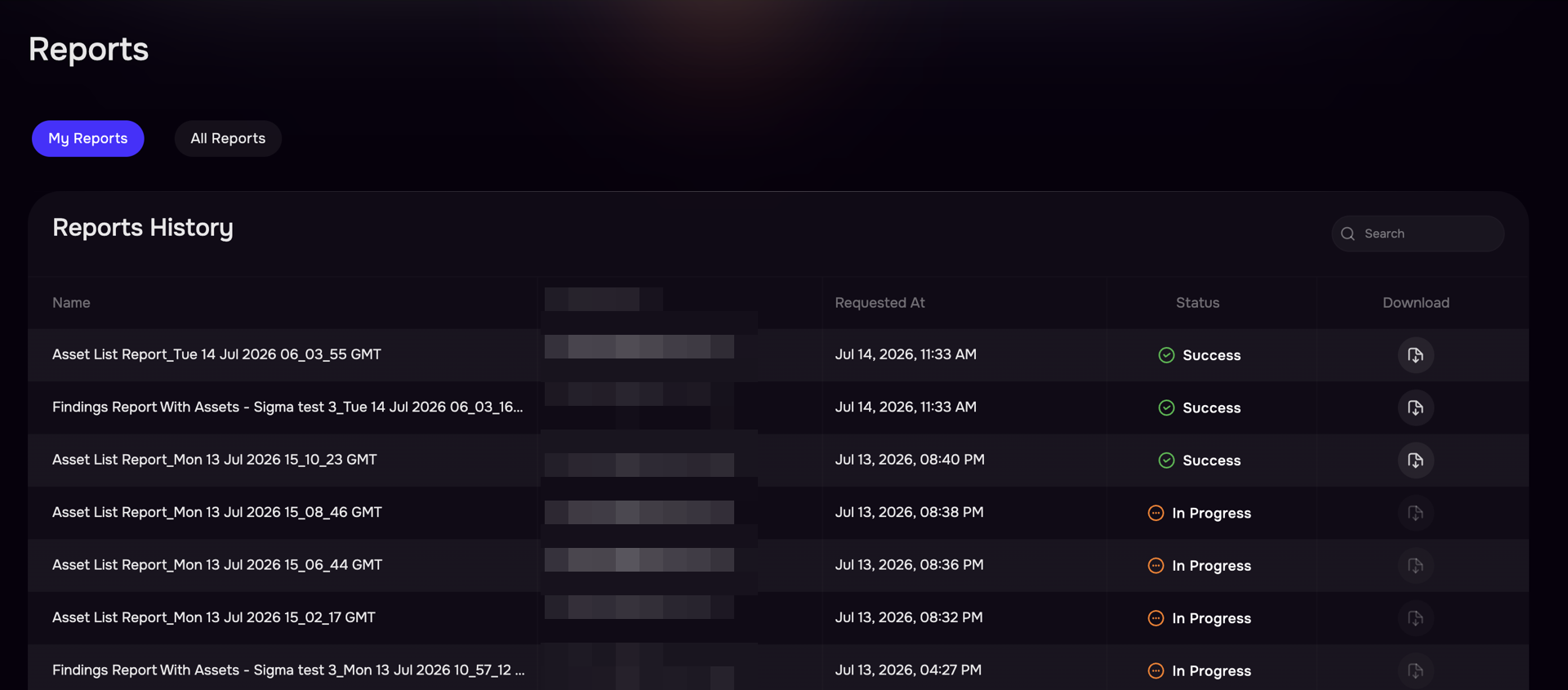
The Reports page shows:
Name — auto-generated report name with timestamp
Requested By — email of the user who initiated the export
Requested At — timestamp of when the export was initiated
Status — current status (In Progress / Success / Failed)
Download — download button (available when status is Success)
You can toggle between My Reports and All Reports (admin only) views.
Reports are retained for 7 days after generation, after which they expire and are no longer downloadable.
Export Limits
Export Type | Maximum Rows | Maximum File Size |
|---|---|---|
Findings Report | 2,500,000 | 5 GB |
Unique Findings Report | 2,500,000 | 5 GB |
Asset Report | 1,000,000 | 5 GB |
Software Report | 250,000 | 5 GB |
Notes
These limits apply uniformly to both UI and API exports.
If the export exceeds the row limit, only the first N rows (sorted by exposure score descending) are included.
Reports are exported as CSV format.
A duplicate report check prevents regenerating the same report within 60 minutes.