Creating a Risk Treatment Plan
Follow these steps to create a new Risk Treatment Plan.
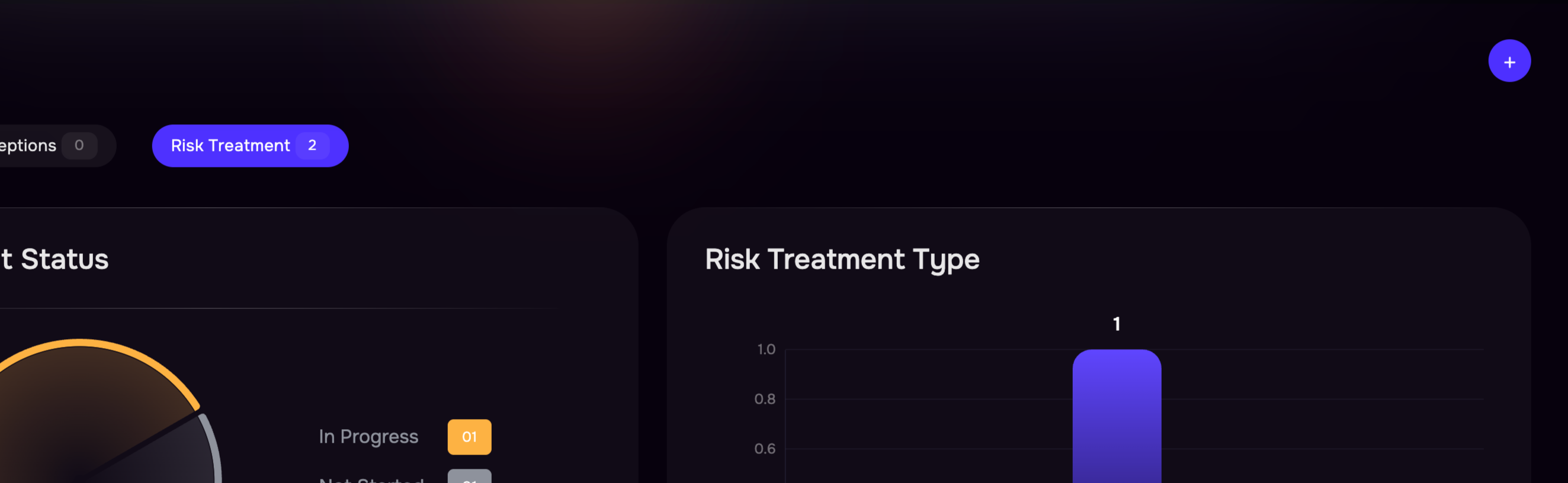
From the left navigation menu, navigate to Projects > Risk Treatment Plan. This page serves as the central location for managing all Risk Treatment Plans.
Click the + button to create a Risk Treatment Plan.
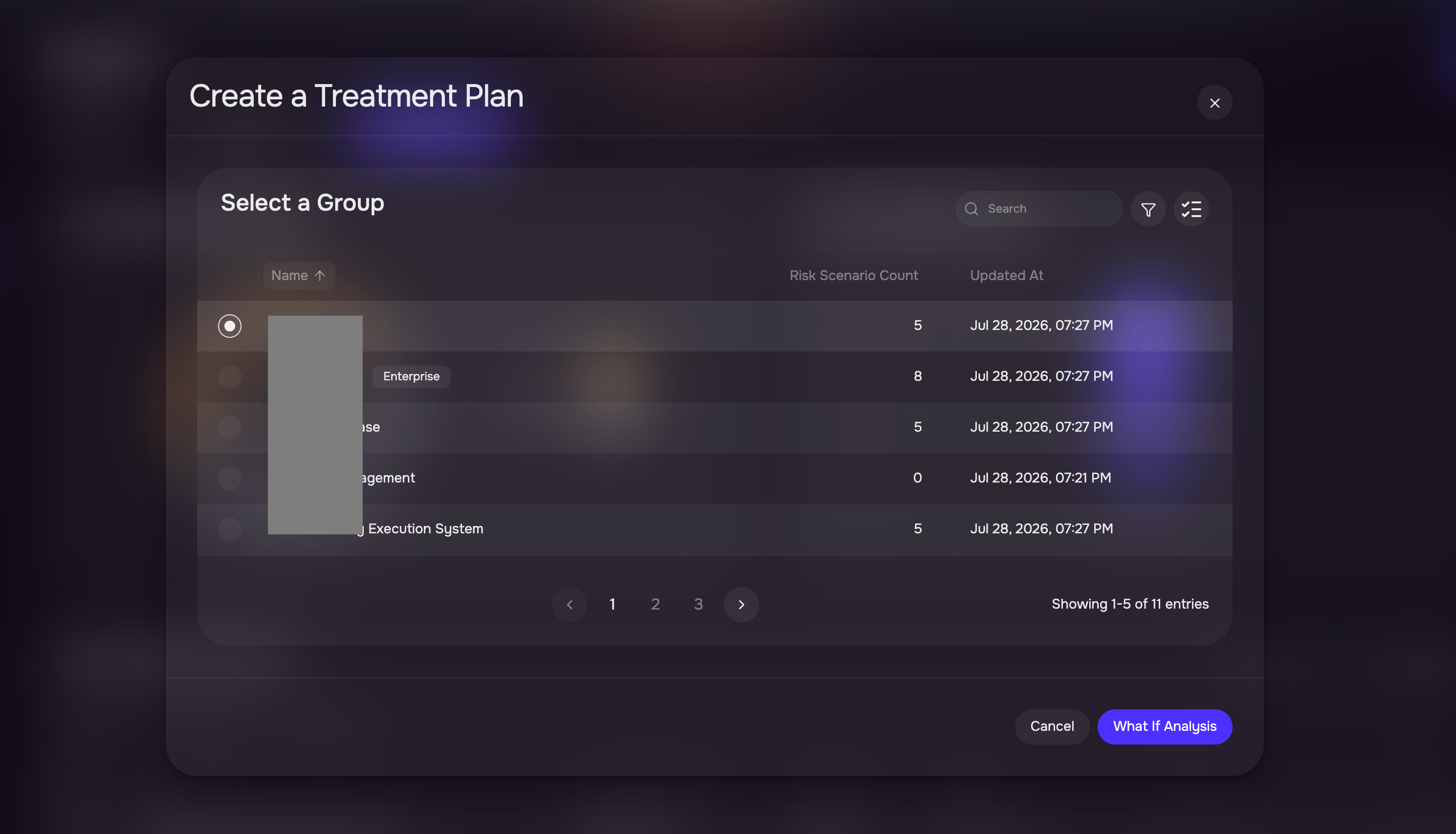
Select the Group for which you want to create the treatment plan.
Click the What-If Analysis button.
Scroll down to the Controls/Findings section.
Filter and select the controls or findings for which you want to perform the What-If Analysis.
Update the Target Control Maturity or Finding Status based on your remediation objectives.
Review the projected risk reduction. SAFE automatically recalculates the projected impact of your proposed changes.

Review the updated values for:
Likelihood
Loss Magnitude
Annual Loss Expectancy (ALE)
Continue adjusting the target values until you achieve the desired level of risk reduction.
Click Save as a Treatment Plan.
Enter a name for the treatment plan.
Click Create.
SAFE redirects you to the Treatment Plan Details page.
Click Edit and populate the remaining plan information:
Treatment Type
Priority
Owner Email
Assignee Email
Start Date
End Date
Rationale
Click Save to finalize the Risk Treatment Plan.
Managing Risk Treatment Plans
Once a Risk Treatment Plan has been created, SAFE CTEM provides a centralized interface to manage, monitor, and update its lifecycle. This enables security teams to track remediation progress, maintain accountability, and ensure treatment activities remain aligned with organizational objectives.
View Risk Treatment Plans
Navigate to Projects > Risk Treatment Plan. The Risk Treatment page displays all treatment plans created within the selected group, along with key information such as:
Treatment Plan Name
Treatment Type
Priority
Owner
Assignee
Current Status
Planned Start and End Dates
Risk Reduction Progress

Edit a Risk Treatment Plan
To update an existing treatment plan:
Navigate to Risk Treatment plan
Select the treatment plan you want to update.
Click Edit.
Modify the required fields, such as:
Treatment Type
Priority
Owner Email
Assignee Email
Start Date
End Date
Rationale
Click Save to apply your changes.
Notes
Updating treatment plan details does not modify the original What-If Analysis. To change the projected risk reduction, create a new What-If Analysis and save it as a new Treatment Plan.
To delete or complete a Risk Treatment Plan, click the three-dot (More Actions) menu in the Manage column of the Risk Treatment Plan list. Select Delete to permanently delete the Risk Treatment Plan.
Select Mark as Completed to mark the Risk Treatment Plan as completed once all remediation activities have been finished.