Introduction - Custom Role
Note
Custom Roles are designed for Groups entities.
A maximum of 20 Custom Roles is supported. If you require more than 20 Custom Roles, please contact SAFE Support or submit a Service Request for further assistance.
Custom Roles for CTEM provide granular, action-level permissions, enabling fine control over what a user can do within specific Groups (or Groups matching a tag).
Define permissions at action level (e.g., Read Group, Create Ticket, Delete Exception, Edit Dashboard)
Restrict access to specific Groups by name or by tag
Combine read access to one set of Groups with write access to another (for example, read-only on critical Groups, full access elsewhere)
Opt in to Ticket and/or Exception access on any custom role — not only Admin-level roles
Enable the least-privilege access model
Custom Role can be created with a combination of First-party and Third-party actions & permissions.
Feature | Description |
Permission Model | Action-level (Read, Create, Edit, Delete) per entity — Groups, Tickets, Exceptions, Dashboards |
Scope Control | Group-level, by Group name or Group tag; empty filter means all Groups |
Flexibility | Dynamic — combine multiple permission blocks with different Group filters on one role |
Use Case | Business-unit or regional access control, hybrid read/write roles, opt-in Ticket/Exception access for non-admin users |
Creating a Custom Role
Follow these steps to create a Custom Role in SAFE:
Navigate to Settings > Role Management.
Click on the Add Role button.
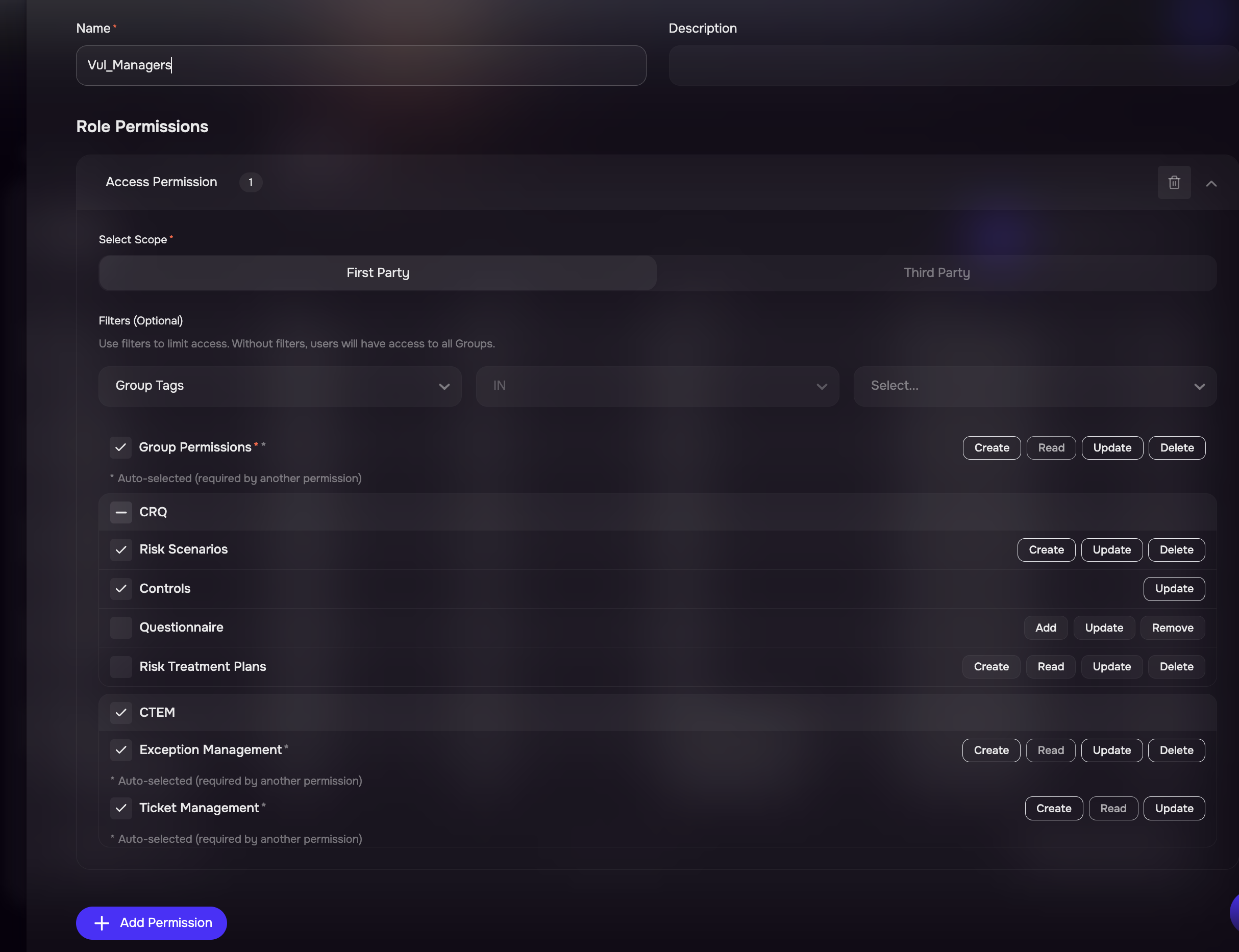
Enter a name and description for the Role.
Click the Add Permission button.
Select the required scope:
First Party: Provides access to CRQ and CTEM use cases.
Third Party: Provides access to TPRM use cases.
For the First Party, select Groups Name or Group Tags as the entity.
Use filters to limit the permission to specific Groups by name, or by Group tag.
Leave the filter empty to grant access to all Groups.Select the actions you want to grant for CRQ and CTEM usecase, such as Group actions (Read, Create, Edit, Delete), Ticket, Exception, and Dashboard actions.
CRQ Permissions: Control access to Risk Scenarios, Controls, Questionnaires, and Risk Treatment Plans for the selected Groups.
CTEM Permissions: Control access to Exception Management and Ticket Management for findings associated with the selected Groups.
If needed, click Add Permission again to add another block with different actions and a different Group filter, for example, read-only on one set of Groups and full access on another.
Click the Save button. The system will create the Custom Role, making it accessible within the role selection when inviting a user to SAFE.
Editing or Deleting Custom Roles
Editing a Custom Role
Navigate to Settings > Role Management.
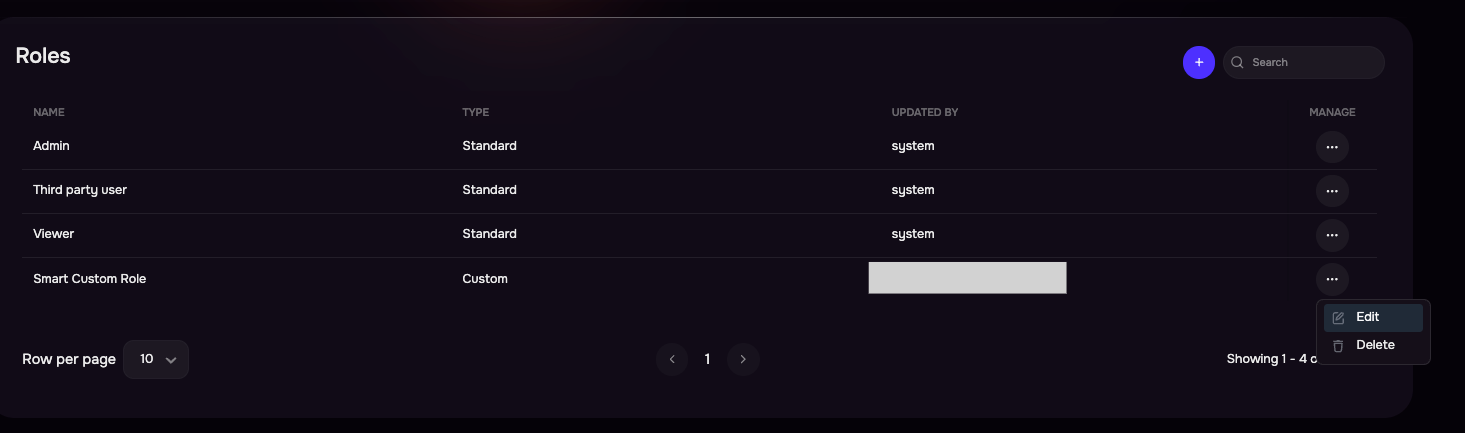
Click on the three-dot options menu for the custom role you wish to edit.
From the menu, select the Edit option.
Modify the role name or adjust read/write permissions for the associated groups as needed.
Click the Save button.
Deleting a Custom Role
Notes
Before deletion, make sure that the user role is not currently assigned to any user.
Navigate to Settings > Role Management.
Click on the three-dot options menu for the custom role you wish to delete.
From the menu, select the Delete option.
Click the Delete button on the confirmation screen.
Role Scope and Access
When creating a custom role, select the scope that defines the type of data and capabilities the user can access.
First Party
Users with First Party by default can access the below:
Dashboard — Users can create, edit, duplicate, and delete dashboards.
Assets
Findings
Additional access to CRQ and CTEM capabilities is determined by the:
Assigned Groups or Group Tags
Group Permissions
CRQ and CTEM permissions configured for the role
For example, depending on the permissions assigned, users may be able to access and manage capabilities such as Risk Scenarios, Controls, Questionnaires, Risk Treatment Plans, Exceptions, and Tickets.
Note: If filters are not configured, the permissions apply to all Groups.
Custom Roles Limitations
Users assigned a Custom Role cannot access the following options from the left navigation:
Agentic Workflow
Integrations
Threat Center
User Management
Role Management
Questionnaire
Note: Access to these capabilities is not currently supported through Custom Roles.
Tickets and Exceptions Access
Users assigned a Custom Role with Ticket Management or Exception Management permissions can access all Tickets or Exceptions permitted by their assigned role.
However, when viewing an individual Ticket or Exception, the user may not have access to the associated Findings and Assets.
Third Party
Users with Third Party access can access the Dashboard.
Access to additional Third Party capabilities and actions is determined by the permissions configured for the role.
For example, users can access and perform actions on Third Parties, Questionnaires, Controls, and Risk Scenarios based on the permissions assigned to their role.
At a Glance
Scope | Default Access | Additional Access |
|---|---|---|
First Party | Dashboard, Assets, and Findings | Based on assigned Groups and CRQ/CTEM permissions |
Third Party | Dashboard | Based on assigned Third Party permissions |